

How to Upgrade an Old Unity Game Template to Unity 6 Without Breaking Your Project
You’ve purchased a Unity game template, downloaded the source code, and started preparing your next game and Upgrade Unity Project to Unity 6 safely.
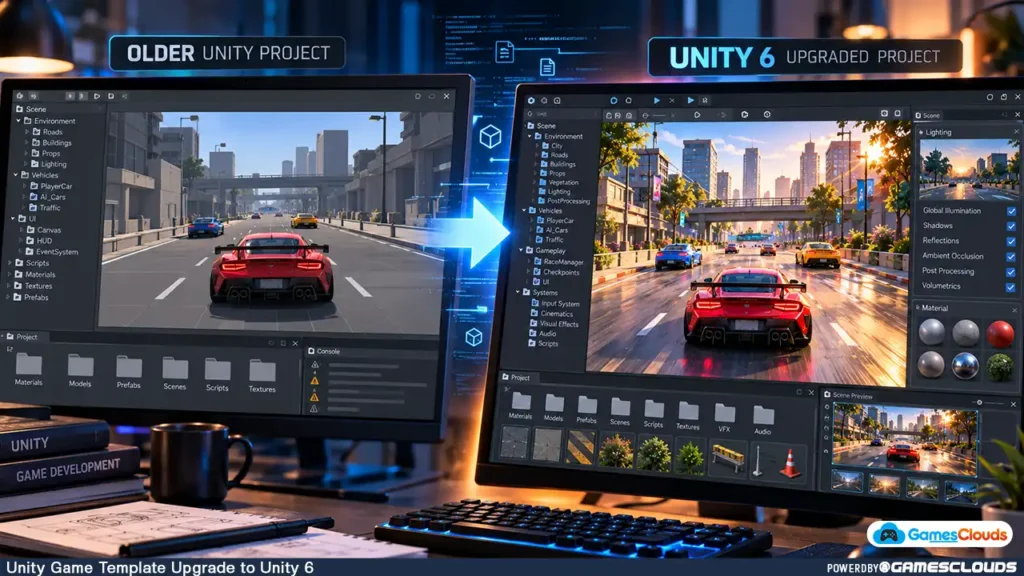
The project includes everything you expected: gameplay systems, characters, environments, menus, and perhaps even advertising integrations.
But there’s one problem.
The template was developed using an older Unity version, while your development environment uses Unity 6.
You open the project, wait for the assets to import, and suddenly the Console fills with errors.
Some materials appear pink. Certain scripts no longer compile. A plugin refuses to load, or the Android build fails before completion.
This situation can be frustrating, particularly when the original project worked correctly.
Fortunately, upgrading an older Unity game template doesn’t always require rebuilding the entire project.
The key is understanding which systems may be affected and following a controlled migration process.
This guide explains how to upgrade existing Unity source code to Unity 6 while reducing the risk of broken scripts, missing materials, incompatible packages, and publishing problems.
1. Understand Why Older Unity Projects Can Break
Unity regularly introduces improvements to rendering, scripting, package management, platform support, and development workflows.
These improvements help developers create modern games, but they can also introduce compatibility changes.
A project created in Unity 2020 or Unity 2021 may rely on systems that have changed significantly in later versions.
Common Compatibility Problems
Developers upgrading older templates may encounter several types of issues:
- Deprecated or removed C# APIs.
- Unsupported third-party plugins.
- Package dependency conflicts.
- Shader and material incompatibilities.
- Rendering pipeline differences.
- Changes to Android build tools.
- Input or animation-related problems.
For example, a racing game template might include an older vehicle controller, a custom camera system, and advertising SDKs.
Even if the gameplay scripts remain compatible, one outdated plugin could prevent the project from compiling.
This is why upgrading should be treated as a technical migration rather than simply opening a project in a newer Editor.
2. Upgrade Unity Project to Unity 6 1st Identify the Original Unity Version
Before changing anything, determine which Unity version was used to develop the project.
This information is important because the upgrade path depends on the starting version.
Check the ProjectVersion File
Inside a typical Unity project folder, navigate to:
ProjectSettings/ProjectVersion.txt
Open the file using a text editor.
It contains information identifying the Unity Editor version associated with the project.
For example, an older project might contain a version beginning with 2020.3, while a Unity 6 project uses the 6000.x version numbering system.
Why the Original Version Matters
Imagine purchasing a Unity 2020 game template.
Opening it directly in a much newer Editor may introduce several categories of compatibility problems simultaneously.
A more controlled approach is to review the official upgrade guidance for the intervening releases.
Unity recommends following upgrade instructions in release order and reviewing changes that may affect existing projects. Unity Documentation
This doesn’t mean every project must be opened in every intermediate Editor version.
Instead, developers should evaluate the required migration steps and use intermediate versions when the project’s dependencies or technical complexity justify them.
3. Create a Complete Backup Before Upgrading
One of the most important rules in Unity development is simple:
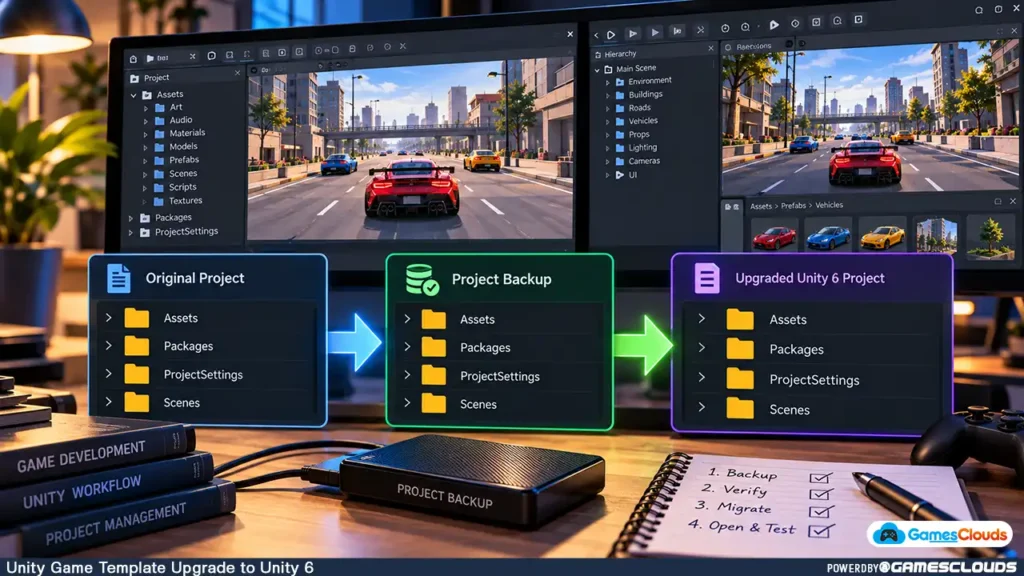
Never upgrade the only working copy of a project.
Opening a project in a newer Unity version can modify project settings, serialized assets, package configurations, and other files.
Some changes may be difficult to reverse.
Recommended Backup Workflow
Create a separate copy of the original project before beginning the migration.
For example, your project folders might look like this:
| Folder | Purpose |
|---|---|
| RacingGame_Original | Untouched source project |
| RacingGame_Upgrade_Test | Working migration copy |
| RacingGame_Production | Approved production version |
The original folder should remain unchanged.
Perform all upgrades inside the testing copy.
Consider Version Control
For larger projects, version control provides additional protection.
A Git repository or another suitable version-control system allows developers to track changes and restore earlier versions.
Unity’s official project-upgrade guidance recommends backing up projects and identifies version control as a preferred approach. Unity Documentation
If you’re working with a team, create a dedicated upgrade branch so that migration work doesn’t disrupt ongoing development.
4. Test the Project in Its Original Unity Version
Before upgrading, try opening the project using its original Editor version.
This establishes whether the source code is functioning correctly before migration.
Establish a Working Baseline
Open the main gameplay scene and test the essential systems.
For a driving game, check vehicle controls, cameras, collisions, level progression, and user interfaces.
For a supermarket simulator, test item interactions, inventory management, player movement, and scene transitions.
Also check whether the project can produce a working build.
Record Existing Problems
If the original project already contains errors, document them separately.
Otherwise, you may incorrectly assume that every issue appearing after migration was caused by the upgrade.
A useful baseline should include the original Unity version, installed packages, rendering pipeline, existing Console errors, and build status.
This information makes troubleshooting much easier later.
5. Choose a Suitable Unity 6 Version
Unity 6 includes multiple releases, and choosing the newest available version isn’t always the best decision for an existing project.
The appropriate version depends on your target platforms, required packages, plugin compatibility, and production requirements.
Review the Official Upgrade Guides
Unity maintains documentation for moving between major Editor releases.
For older projects, the relevant guidance may include migrations through Unity 2021 LTS, Unity 2022 LTS, and Unity 6.
The official Unity upgrade documentation provides version-specific migration information.
Consider Plugin Compatibility
Before selecting a target Editor version, check whether the project depends on packages that support it.
A template might use:
- Cinemachine.
- TextMeshPro.
- Input System.
- Advertising SDKs.
- Analytics integrations.
- Third-party vehicle controllers.
- Multiplayer networking packages.
Not every older package is compatible with every newer Editor version.
If an essential plugin has no compatible update, additional development work may be required.
For commercial projects, a supported and well-tested Editor version is usually more valuable than upgrading solely to access the latest features.
6. Review Unity Package Manager Dependencies
Package dependencies are a common source of migration problems.
An older Unity project may reference package versions that are no longer appropriate for the target Editor.
Inspect the Package Manifest
Unity stores project package dependencies in:
Packages/manifest.json
This file identifies the packages required by the project.
The Package Manager uses it to determine which packages to retrieve and load.
Unity’s official documentation explains how the project manifest controls package dependencies and their versions. Unity Documentation
Update Packages Carefully
After opening the migration copy, inspect the Package Manager.
Look for missing packages, version conflicts, or unsupported dependencies.
Update essential packages only after checking their compatibility with the selected Unity version.
Avoid updating every package simultaneously.
For example, if a project uses an older camera package and a legacy input integration, changing both at once may make troubleshooting more difficult.
Update one major dependency, test the affected features, and continue.
Preserve Package Information
Keep a copy of the original package manifest and lock file.
These files can help identify which dependency versions were previously used.
This is especially useful when a package update changes gameplay behavior or introduces new compilation errors.
7. Fix C# Script Errors After Upgrading
C# compilation errors are among the most common issues developers encounter during Unity migration.
Some errors occur because Unity APIs have changed.
Others originate from incompatible plugins or scripts that reference removed functionality.
Use the Unity Console
Open the Console window and examine the first meaningful error.
A single compilation problem can sometimes trigger numerous secondary errors.
For example, an outdated method used inside a shared utility script may prevent several dependent systems from compiling.
Fixing the original issue may resolve multiple related messages.
Understand Unity’s API Updater
Unity provides an API Updater that can identify and modify certain obsolete API references.
When the Editor detects supported upgradeable code, it may offer to update the affected scripts.
However, the tool cannot automatically resolve every compatibility problem.
Unity’s documentation explains that the API Updater handles specific obsolete API errors and warnings, while other issues require manual correction. Unity Documentation
Avoid Blind Code Replacement
Suppose an older game template uses a custom vehicle controller.
Replacing outdated methods without understanding their behavior may remove compilation errors while introducing gameplay bugs.
After fixing scripts, test the affected systems.
Check acceleration, braking, steering, camera movement, and physics behavior.
A project that compiles successfully isn’t necessarily functioning correctly.
8. Fix Pink Materials and Broken Shaders
After upgrading a Unity project, developers sometimes discover that characters, vehicles, or entire environments appear bright pink.
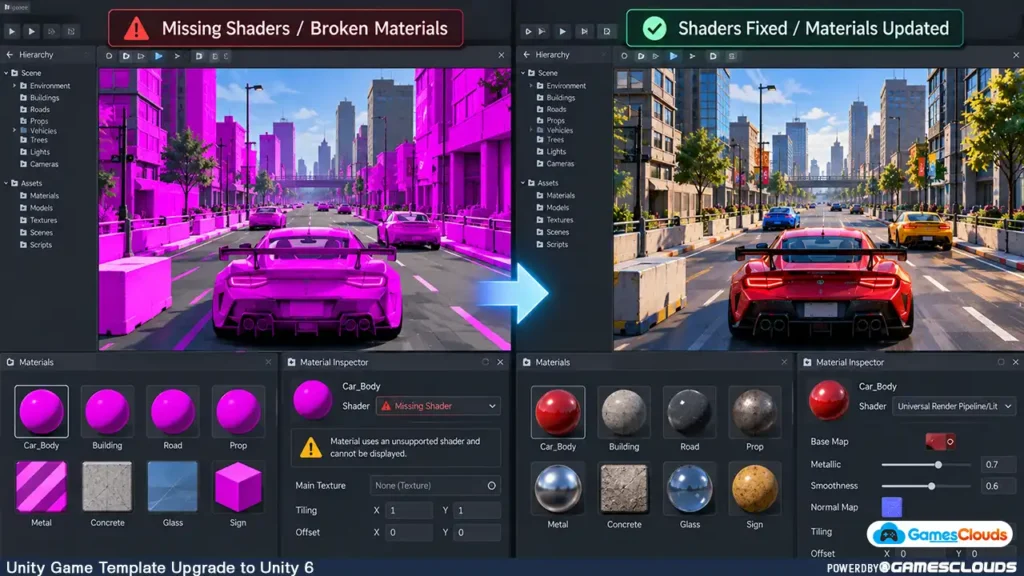
This commonly indicates that a material’s shader is missing, unsupported, or incompatible with the active rendering pipeline.
Understand the Rendering Pipeline
Unity projects may use the Built-in Render Pipeline, Universal Render Pipeline (URP), or High Definition Render Pipeline (HDRP).
These pipelines use different rendering systems and shader requirements.
An important distinction is that upgrading the Unity Editor and changing the rendering pipeline are separate operations.
You don’t necessarily need to convert an existing Built-in Render Pipeline project to URP simply because you’re upgrading its Editor version.
Converting Materials to URP
If you intentionally migrate a Built-in Render Pipeline project to URP, Unity provides a Render Pipeline Converter.
In Unity 6.0, you can access it through:
Window → Rendering → Render Pipeline Converter
The tool can convert supported materials and other project assets.
However, custom shaders may require manual modification or replacement.
Unity warns that conversion can make irreversible changes, so developers should create a backup before using the tool. Unity Documentation
Check the Entire Scene
After shader migration, inspect more than the main character.
Review vehicle paint, transparent windows, vegetation, particle effects, terrain, UI materials, and post-processing.
A material may appear correct in isolation but behave differently under the project’s actual lighting conditions.
Compare screenshots with the original project to identify unexpected visual changes.
9. Verify Prefabs, Animations, and Scene References
Even when scripts compile and materials render correctly, some gameplay systems may still behave unexpectedly.
This can happen when serialized references, package components, or animation configurations are affected by migration.
Inspect Important Prefabs
Open the project’s main prefabs and verify their components.
For example, a vehicle prefab may contain a Rigidbody, wheel colliders, scripts, audio sources, and camera references.
A missing script or incorrectly configured component can cause gameplay problems.
Test Animations
Check that animation controllers, transitions, and events still function correctly.
For character-based games, test idle, movement, interaction, and action animations.
For simulation games, inspect animated doors, machinery, interactive props, and other gameplay elements.
Review Scene Transitions
Test navigation between menus, gameplay levels, shops, and other scenes.
Also verify that required scenes are included in the build configuration.
A project may work correctly in the Editor while failing to load a scene in the final application if its build configuration is incomplete.
10. Update Android Build Configuration
For developers planning to publish mobile games, Android compatibility is an important part of the migration process.
Older Unity projects may use build configurations or dependencies that require updating.
Install the Required Android Modules
Use Unity Hub to install the Android Build Support module for the selected Editor version.
Ensure that the required SDK, NDK, and OpenJDK components are available.
Unity Hub generally provides the recommended toolchain components for supported Editor installations.
Review Player Settings
Check the application’s package identifier, minimum Android version, target API level, scripting backend, target architectures, and signing configuration.
For an existing published game, preserve the required application identity and signing arrangements.
Also review whether advertising, analytics, and other Android plugins support the updated build environment.
Generate an Android App Bundle
Unity 6 uses Build Profiles for platform build configuration.
To create an Android App Bundle, navigate to:
File → Build Profiles → Android
Enable the appropriate Build App Bundle (Google Play) option.
Unity’s official documentation explains the Android build workflow and supported APK and AAB formats. Unity Documentation
Before publishing, verify the current requirements of your intended app store.
A successful Android build does not automatically mean the application satisfies every store policy or technical requirement.
11. Test the Upgraded Game on Real Devices
Once the project compiles and builds successfully, begin functional testing.
This is where many hidden migration problems become visible.
Test Complete Gameplay Sessions
Don’t limit testing to the main menu or first level.
Check the entire gameplay flow.
For example, a racing game should be tested across multiple vehicles, environments, and progression stages.
A simulation game should be tested for saving, loading, inventory interactions, and longer gameplay sessions.
Verify Third-Party Integrations
If the game uses advertising or in-app purchases, test those integrations using appropriate development or test configurations.
Check whether rewarded advertisements deliver rewards correctly and whether purchase entitlements behave as expected.
Also test account-related features and saved progress where applicable.
Evaluate Performance
An upgraded project may have different performance characteristics from the original.
Measure frame time, memory consumption, loading behavior, and stability on representative devices.
Compare the results against your original baseline.
If performance becomes worse, investigate the specific rendering, scripting, or package changes responsible.
Avoid assuming that a newer Unity version automatically makes an older game faster.
12. Maintain a Clean Production Version
After completing the migration, avoid immediately replacing the original project.
Create a stable production version containing the approved changes.
Document the Upgrade
Record the final Unity Editor version, package versions, rendering pipeline, and major compatibility changes.
Also document any remaining limitations.
For example, if an older plugin was replaced with a newer alternative, record which gameplay systems were affected.
Preserve a Working Release
Create a version-control tag or another reliable release snapshot after successful testing.
This provides a known working state for future development.
If another developer joins the project, they should be able to identify the required Editor version and dependencies without reconstructing the entire migration history.
Good documentation reduces maintenance effort and makes future upgrades more predictable.
Common Unity Upgrade Mistakes to Avoid
One common mistake is opening the original source project directly in a newer Unity Editor without creating a backup.
Another is upgrading the Editor, rendering pipeline, and all third-party packages simultaneously.
These changes can introduce unrelated problems, making it difficult to identify the cause of a failure.
Developers should also avoid assuming that a project is fully compatible simply because the Console contains no compilation errors.
Gameplay systems, shaders, animations, and platform-specific integrations still require testing.
Finally, upgrading solely because a newer version exists may create unnecessary work.
If an older project already meets its technical requirements and uses a supported development environment, consider whether the upgrade provides a meaningful benefit.
Practical Unity Migration Checklist
Before considering the migration complete, review the following areas.
| Migration Area | What to Verify |
|---|---|
| Original Project | Working backup and documented baseline |
| Unity Version | Appropriate target Editor selected |
| Packages | Compatible dependencies installed |
| C# Scripts | Compilation errors resolved |
| Rendering | Materials, shaders, and lighting working |
| Prefabs | Components and references preserved |
| Animations | Controllers and events functioning |
| Android Configuration | Platform settings and dependencies updated |
| Gameplay | Complete functionality tested |
| Performance | Acceptable results on target hardware |
| Documentation | Final version and changes recorded |
A structured checklist makes it easier to identify unfinished work before the upgraded project enters production.
Is Upgrading an Old Unity Template Worth It?
The answer depends on the project.
An upgrade may be worthwhile when the existing Editor or toolchain no longer supports your publishing requirements, when compatible SDKs require a newer version, or when newer development features provide a clear benefit.
However, a large migration can also require substantial time.
For example, a project using multiple discontinued plugins and custom shaders may require more work than a simpler template with standard Unity components.
Before upgrading, estimate the compatibility work and compare it against the value of the intended improvements.
Sometimes a controlled migration is the best choice.
In other cases, maintaining the existing project temporarily while planning a future upgrade may be more practical.
Conclusion
Upgrading an old Unity game template to Unity 6 can be a manageable process when approached systematically.
Start by identifying the original Editor version and preserving a complete backup.
Then establish a working baseline, review the official upgrade guidance, and evaluate package compatibility.
Resolve compilation errors carefully, inspect materials and shaders, verify prefabs and animations, and update platform-specific configurations where necessary.
Most importantly, test the upgraded project as a complete game rather than assuming that successful compilation means the migration is finished.
A successful Unity upgrade preserves the game’s essential functionality while preparing the project for future development.
At GamesClouds, developers can explore a collection of Unity game source codes and templates covering different genres and platforms.
If your project requires technical upgrades, bug fixing, customization, or publishing assistance, explore our game development and support services.
Frequently Asked Questions
1. Can I open a Unity 2020 project in Unity 6?
Many older projects can be migrated to Unity 6, but compatibility depends on their scripts, packages, shaders, and third-party dependencies. Back up the project, review the relevant upgrade guides, and test the migration before using it for production.
2. Why are my materials pink after upgrading Unity?
Pink materials commonly indicate missing or incompatible shaders. Check the active rendering pipeline, shader assignments, and material dependencies. If you’re intentionally converting a Built-in Render Pipeline project to URP, use the appropriate migration tools and review unsupported custom shaders.
3. Does Unity automatically fix old C# scripts?
Unity’s API Updater can automatically modify certain obsolete API references. However, it cannot resolve every compilation error or guarantee that gameplay behavior remains unchanged. Manual debugging and testing may still be necessary.
4. Do I need to convert my project to URP when upgrading to Unity 6?
Not necessarily. Upgrading the Unity Editor and migrating to URP are separate decisions. Review the rendering pipeline’s support status and your project’s requirements before making changes.
5. Will upgrading Unity improve my game’s FPS?
Not automatically. Performance depends on rendering settings, scripts, assets, hardware, and other factors. Compare performance before and after upgrading to determine whether the migration introduces improvements or regressions.
[…] For a detailed migration workflow, see our Unity 6 game template upgrade guide. […]
[…] you intend to migrate an older project, read our Unity game template upgrade guide before making […]
[…] migration is necessary, follow our Unity game template upgrade guide before modifying the project […]