

How to Publish Unity Game on Google Play in 2026
You’ve purchased a Unity game template, customized its graphics, updated the gameplay, and successfully generated an Android build.
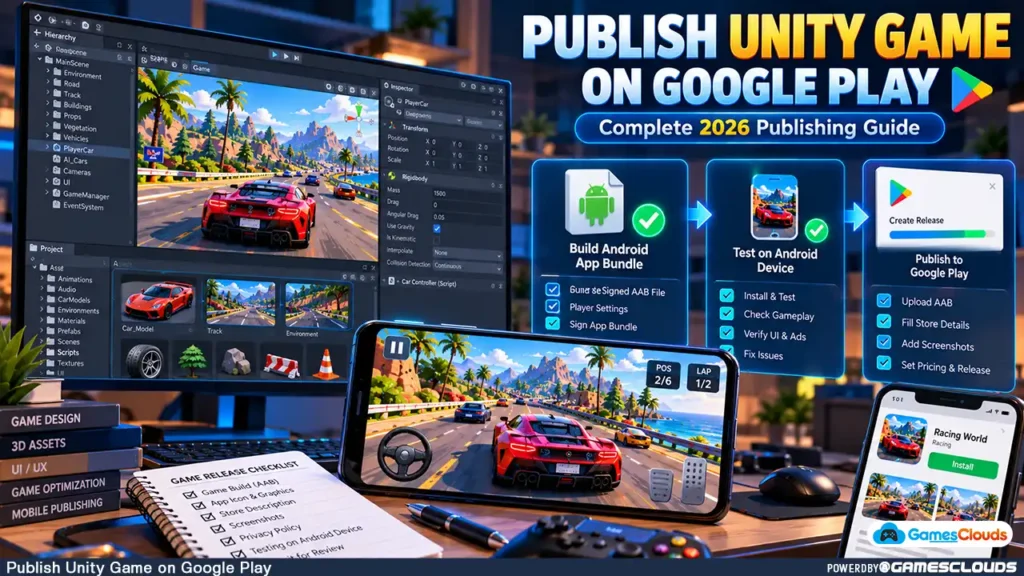
The game runs on your phone.
Everything appears ready.
But when you open Google Play Console, you discover that publishing involves more than uploading a working game.
You need the correct Android App Bundle, a valid signing configuration, supported Android API levels, accurate store information, privacy disclosures, and appropriate testing.
Older Unity projects can introduce additional complications because their original build settings may no longer meet current Google Play requirements.
This is particularly important for developers who purchase editable Unity source code and plan to release their own versions.
A project that worked when it was originally developed may require technical updates before its next commercial release.
The good news is that these requirements become easier to manage when you follow a structured publishing process.
In this guide, we’ll explain how to publish a Unity game on Google Play in 2026, prepare a purchased game template, configure Android builds, and avoid common submission mistakes.
1. Understand What Google Play Requires Before Publishing
Google Play has technical, security, privacy, and content requirements that developers must satisfy before releasing an application.
These requirements apply to original Unity projects and games developed from purchased templates.
A Working APK Isn’t Enough
An Android APK is useful for local installation and testing.
However, Google Play requires new applications to use the Android App Bundle publishing format.
An Android App Bundle contains the compiled code and resources that Google Play uses to generate optimized installation packages for supported devices.
Google introduced the App Bundle requirement for new applications in August 2021. Android Developers
Publishing Requires More Than Technical Compatibility
A technically valid game can still encounter publishing problems if its store information, privacy declarations, content rating, or intellectual-property permissions are incomplete.
For this reason, treat publishing as a separate production stage rather than the final button in Unity.
2. Verify Your Unity Project Before Preparing the Release
Before changing Android settings, confirm that your game project is stable.
This is particularly important when working with third-party Unity source code.
Check the Unity Version
Open the project using a compatible Unity Editor version.
Review the installed packages, rendering pipeline, scripting backend, and Android build dependencies.
If the project was developed using an older Unity release, determine whether an upgrade is necessary for the target Android requirements.
Avoid upgrading the only working copy.
Create a backup and test important systems after making changes.
For a detailed migration workflow, see our Unity 6 game template upgrade guide.
Test the Complete Gameplay
A game that opens successfully in the Unity Editor isn’t necessarily ready for Android.
Test important systems such as player controls, menus, scene transitions, progression, saving, and audio.
For example, a driving simulator should be tested for vehicle movement, camera switching, level completion, and restart functionality.
Record any existing issues before changing the build configuration.
3. Check Google’s 2026 Android Target API Requirements
One of the most important publishing checks is the Android target API level.
Google Play periodically updates the minimum target API level required for new applications and updates.
What Is the Target API Level?
The target API level tells Android which platform behavior expectations the application is designed to support.
It differs from the minimum Android version, which determines the oldest supported operating system.
Google Play Requirements in 2026
According to Google’s official documentation, starting August 31, 2026, new standard Android applications and updates submitted to Google Play must target Android 16, API level 36, or higher.
Different requirements apply to certain device categories, including Wear OS, Android TV, Android Automotive OS, and Android XR.
Existing applications also have separate availability requirements. Android Developers
What This Means for Unity Templates
Suppose you purchase a Unity driving game originally configured for an older Android API level.
The project might still compile and run on your phone.
However, that doesn’t establish compliance with current Google Play submission requirements.
You may need to update the Unity Editor, Android SDK, build tools, or third-party plugins.
Before publishing, confirm that your selected Unity version and Android toolchain can produce a compatible release.
4. Understand the Android 16 KB Page-Size Requirement
Another important Android compatibility consideration involves memory page sizes.
Historically, many Android devices used 4 KB memory pages.
Android 15 introduced support for devices configured with 16 KB memory pages.
Applications containing native libraries may need updated binaries and packaging to operate correctly on these devices.
Why Unity Developers Should Care
Unity games use native engine components, and some projects include additional native plugins.
These components may be affected by page-size compatibility requirements.
Google’s Android documentation states that applications targeting Android 15 or higher must support 16 KB page sizes on applicable 64-bit devices.
Its documentation, updated September 16, 2026, identifies February 1, 2027, as the date after which noncompliant updates cannot be released. Android Developers
How to Check Compatibility
Start by reviewing the native libraries included in your Android build.
Android Studio’s APK Analyzer can identify shared libraries and highlight alignment problems.
Google also documents tools for checking package alignment and testing applications in a 16 KB environment.
For example, developers can use the following command on a correctly configured 16 KB test environment:
adb shell getconf PAGE_SIZEA result of 16384 indicates a 16 KB page-size environment.
For complete instructions, consult the official Android 16 KB compatibility guide.
Don’t assume that an older template is compliant simply because it runs on an existing Android device.
5. Configure Unity Android Player Settings
After verifying project compatibility, review the Android Player Settings.
These settings control important information included in the final application.
Configure the Application Identity
Check the product name, company name, package identifier, application icon, and version information.
The package identifier uniquely identifies the Android application.
For example:
com.yourstudio.drivingsimulator
This is an illustrative identifier, not an available or registered package name.
Choose your identifier carefully.
For an existing published application, preserve the established package identity when preparing updates.
Configure Android Requirements
Review the minimum Android version, target API level, scripting backend, and target architectures.
The correct values depend on the Unity version, supported devices, and current publishing requirements.
Also confirm that the Android SDK, NDK, and OpenJDK components required by your Unity installation are available.
Review Application Permissions
Inspect the permissions requested by the application and its plugins.
A game shouldn’t request access to sensitive device features without a legitimate functional reason.
Remember that advertising, analytics, and other SDKs may introduce additional permissions.
6. Generate an Android App Bundle in Unity
Once the Android configuration is ready, create a release build using the appropriate publishing format.
Build an AAB in Unity 2022
For Unity 2022.3 projects, open:
File → Build Settings → Android
Enable:
Build App Bundle (Google Play)
Then generate the Android App Bundle.
Build an AAB in Unity 6
Unity 6 uses Build Profiles.
Open:
File → Build Profiles → Android
Enable the Build App Bundle (Google Play) option and create the build.
The exact interface may vary between Unity releases.
Unity’s official documentation explains the available Android build formats and configuration options. Unity Documentation
Why Use an App Bundle?
Google Play uses App Bundles to generate device-specific installation packages.
This can reduce unnecessary downloads by delivering the resources appropriate for each supported device.
However, App Bundles don’t automatically fix oversized textures, unnecessary assets, or inefficient game content.
Developers should still optimize their projects before release.
7. Configure App Signing and Protect Your Keystore
Android applications must be digitally signed.
Signing establishes the identity associated with the application and helps Android verify updates.
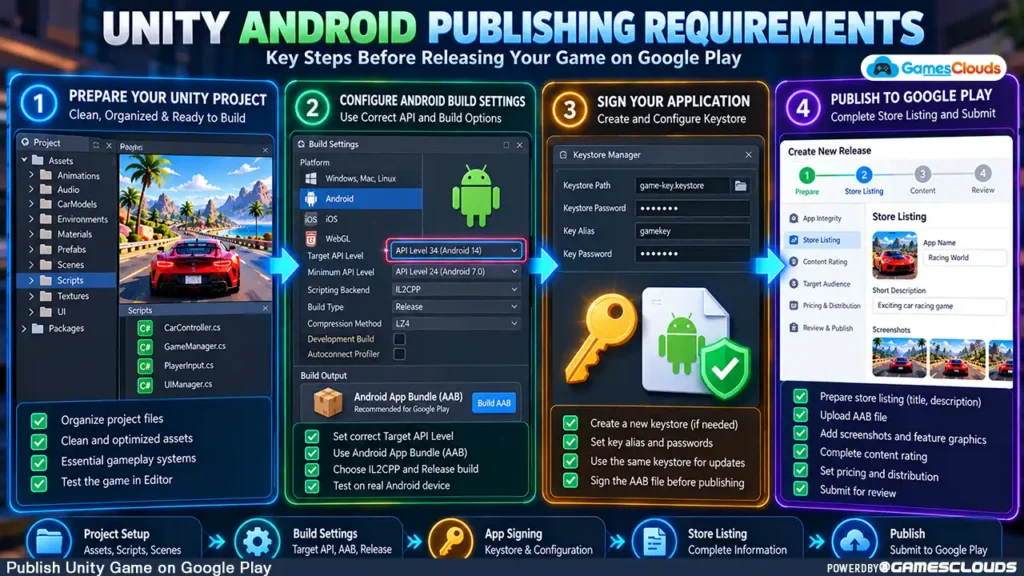
Understand Play App Signing
Google Play App Signing separates the app signing key from the upload key.
The upload key is used to sign the bundle submitted to Google Play.
Google then uses the app signing key to sign the application packages delivered to users.
This arrangement provides additional key-management protections. Android Developers
Configure Signing in Unity
Open the Android publishing settings and configure the appropriate custom keystore and key alias.
Keep the keystore file and passwords secure.
Avoid storing private signing credentials in publicly accessible repositories or sharing them unnecessarily.
Important for Purchased Unity Source Code
If you’re publishing a new game based on purchased source code, don’t assume the seller’s existing signing configuration should be reused.
Create and manage the appropriate signing credentials for your application.
For updates to an already published game, follow the existing application’s signing arrangements.
8. Customize Your Game Before Publishing
A purchased Unity template should be treated as a development foundation.
It shouldn’t automatically be considered a finished commercial product.
Create a Distinctive Game Identity
Review the game’s title, icon, splash screen, interface, environments, and promotional artwork.
Make meaningful improvements that distinguish the finished experience.
For example, a purchased car-parking template could be expanded with original parking challenges, improved progression, distinctive environments, and a redesigned interface.
Simply changing the application name may not provide meaningful differentiation.
Check Source Code and Asset Licenses
Before publishing, verify that your license permits the intended commercial release.
Also review the rights associated with third-party models, audio, textures, fonts, and plugins.
For more information, read our Unity game source code licensing guide.
If you’re preparing a customized version of a template, our Unity game reskinning tutorial explains additional customization considerations.
9. Prepare Advertising and Monetization Systems
If your game includes advertising or in-app purchases, verify that these systems work correctly before submission.
Test Advertising Integrations
Confirm that advertising SDKs initialize correctly and that ad placements don’t interfere with essential gameplay.
Rewarded advertisements should grant the intended benefit only after the appropriate reward confirmation.
For a dedicated implementation guide, see our AdMob rewarded ads Unity tutorial.
Verify In-App Purchases
If the game contains purchases, check product configuration, transaction handling, restoration behavior where applicable, and platform policy compliance.
Use appropriate testing environments rather than conducting unnecessary live purchases.
Avoid Misleading Monetization
Players should understand what they’re purchasing or receiving.
Don’t disguise advertisements as ordinary gameplay actions or create confusing purchase interfaces.
Monetization should complement the game experience rather than obstruct it.
10. Complete Google Play Privacy and Data Safety Requirements
Google Play requires developers to provide accurate information about their application’s data practices.
This includes information associated with third-party SDKs.
Prepare a Privacy Policy
Your privacy policy should accurately describe relevant data collection, sharing, and processing practices.
Even applications that don’t collect user data generally need to complete the Data Safety form and provide a privacy policy.
Review Third-Party SDK Behavior
Advertising, analytics, authentication, and crash-reporting services may process different categories of information.
Don’t assume that a purchased template’s existing privacy documentation accurately describes your customized application.
Google states that developers are responsible for their Data Safety declarations, including relevant data practices of third-party libraries. Google Help
Review the Google Play Data Safety documentation before completing your store disclosures.
11. Prepare Your Google Play Store Listing
Your store listing introduces the game to potential players.
It should accurately communicate what the application offers.
Create a Clear Game Title
Choose a title that reflects the game’s identity and genre.
Avoid misleading branding or unnecessary keyword repetition.
Write a Useful Description
Explain the gameplay experience, important features, controls, and progression.
Focus on information that helps players decide whether the game suits their interests.
Prepare Professional Screenshots
Use authentic gameplay screenshots showing meaningful features.
For a driving game, useful screenshots might demonstrate vehicle customization, parking challenges, different environments, and gameplay controls.
Screenshots should accurately represent the released application.
Design a Distinctive Icon
Your application icon should be recognizable at small sizes.
Avoid excessive text or details that become unreadable on mobile screens.
A strong icon can help communicate the game’s visual identity, but no particular design guarantees more downloads.
12. Test Your Unity Game Through Play Console
Before publishing to production, use the available testing tracks.
Google Play supports internal, closed, and open testing, subject to account eligibility and platform requirements.
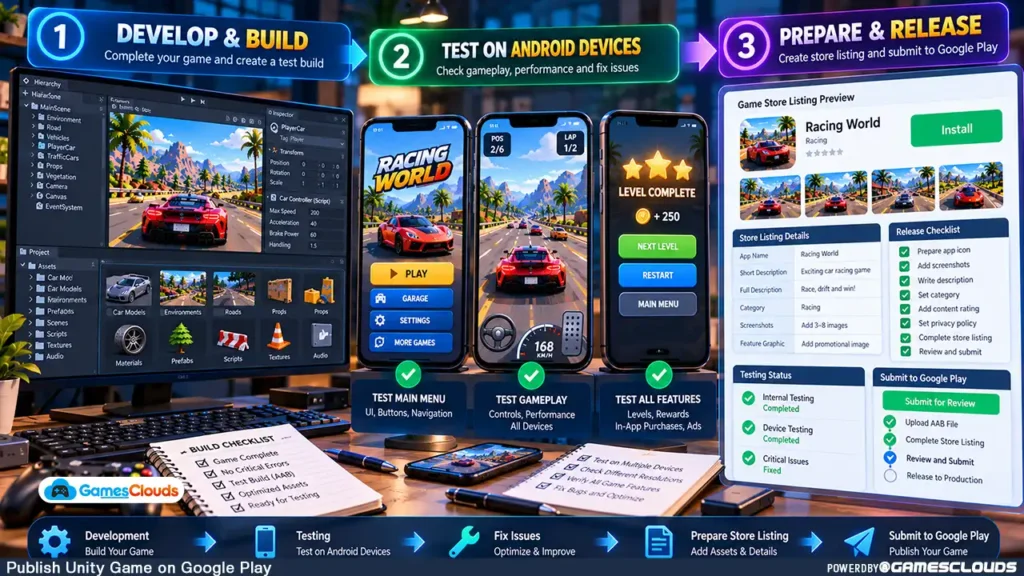
Start With Internal Testing
Internal testing allows developers to distribute builds to a limited group of trusted testers.
Use it to identify installation problems, crashes, missing assets, and gameplay issues.
Understand Closed Testing Requirements
Google currently requires personal developer accounts created after November 13, 2023, to complete specific testing requirements before receiving production access.
These accounts must conduct a closed test with at least 12 testers continuously opted in for 14 days before applying for production access.
Meeting the numerical requirement doesn’t automatically guarantee approval; Google also reviews the production-access application. Google Help
Test Different Devices
Test the game on representative supported Android devices.
Check loading times, memory usage, touch controls, performance, audio, advertisements, and progression.
A game that works on one development phone may behave differently on other devices.
13. Upload Your Unity Game to Google Play Console
After completing the necessary setup and testing, prepare the application release.
Create the Application Entry
Open Google Play Console and create the application using the appropriate account.
Complete the required application details and declarations.
Upload the Release Bundle
Navigate to the appropriate testing or production release area.
Upload the signed Android App Bundle and review the information generated by Play Console.
Resolve any blocking technical errors or policy issues before proceeding.
Review the Release
Confirm that the version information, package identity, store listing, supported devices, and release notes are correct.
Check the publishing overview for outstanding requirements.
Don’t assume that uploading an AAB means the game has already been approved for public distribution.
Submit for Review
When the required sections are complete, submit the release through the applicable publishing workflow.
Review duration and approval outcomes can vary.
Avoid announcing a guaranteed launch date before the release has been approved and made available.
Common Unity Google Play Publishing Mistakes
A frequent mistake is attempting to publish an older Unity project without checking current Android requirements.
Another is confusing an APK used for local testing with the App Bundle required for new Google Play applications.
Developers may also overlook signing credentials, outdated plugins, unsupported native libraries, or incomplete privacy declarations.
Purchased game templates introduce additional considerations.
A product description stating that a project is suitable for publishing doesn’t replace the developer’s responsibility to verify current store compliance.
Finally, avoid preparing promotional graphics before confirming that the final gameplay and feature set are stable.
Store screenshots should represent the actual application players will receive.
Unity Game Publishing Checklist
| Stage | Required Check |
|---|---|
| Project Preparation | Verify Unity version and project stability |
| Gameplay | Test core systems and scene transitions |
| Android Configuration | Confirm target API and supported devices |
| Native Compatibility | Review applicable 16 KB page-size requirements |
| App Identity | Configure package name, version, and icons |
| Release Build | Generate a compatible Android App Bundle |
| Security | Configure signing and protect credentials |
| Licensing | Verify commercial publishing and asset rights |
| Monetization | Test ads and purchases where applicable |
| Privacy | Complete required disclosures and privacy policy |
| Store Listing | Prepare accurate descriptions and screenshots |
| Testing | Complete applicable Play Console testing |
| Submission | Resolve errors and submit the release for review |
Conclusion
Publishing a Unity game on Google Play requires more than creating a successful Android build.
Developers must prepare the project, configure the correct publishing format, meet current Android requirements, manage signing credentials, and complete the necessary store information.
For developers working with purchased Unity source code, the process also includes verifying licensing permissions, customizing the game, and checking compatibility with current platform requirements.
The most effective approach is to treat publishing as a planned development stage.
Test the game thoroughly, review the technical requirements, and resolve important issues before submitting the release.
A successful Unity build is an important milestone, but a complete publishing workflow is what prepares the game for distribution.
At GamesClouds, developers can explore editable Unity game source codes and templates for mobile and PC development.
For example, the Real Car Parking Unity Source Code provides a driving-game development foundation that can be customized for a new project.
Developers should verify the current technical and publishing requirements for their specific project before release.
If you need assistance with project customization, Android compatibility, or publishing preparation, explore our game development and publishing services or contact GamesClouds to discuss your requirements.
Frequently Asked Questions
1. Can I publish a purchased Unity game template on Google Play?
Yes, provided the applicable license permits commercial publishing, the included assets are appropriately licensed, and the finished application complies with Google Play’s technical and content requirements. Purchasing a template doesn’t automatically guarantee publishing approval.
2. Do I need an APK or AAB to publish a Unity game?
New applications submitted to Google Play require an Android App Bundle (AAB). APK files remain useful for local installation and testing. Unity provides an option to generate App Bundles for Google Play.
3. What Android API level is required for Unity games in 2026?
Starting August 31, 2026, standard new Android applications and updates submitted to Google Play must target Android 16, API level 36, or higher, subject to Google’s published exceptions and extensions. Check the latest official requirements before submitting.
4. Why is my Unity game rejected by Google Play?
Possible reasons include unsupported Android settings, invalid signing configurations, incomplete declarations, policy violations, intellectual-property problems, or other submission issues. Review the specific Play Console error or policy notification to identify the cause.
5. Can I publish a Unity game without knowing how to code?
Some developers use editable templates and visual development tools to reduce the amount of programming required. However, publishing still involves technical configuration, testing, policy compliance, and troubleshooting. More complex problems may require programming knowledge or professional assistance.
[…] developers planning a mobile release, our Unity Google Play publishing guide covers additional release preparation […]
[…] For the broader publishing workflow, read our Unity Google Play publishing guide. […]
[…] If you’re preparing a new Unity project for release, read our complete Unity Google Play publishing guide. […]