Unity Android Build Size Optimization: Practical Guide
Your Unity game runs smoothly, the graphics look good, and the gameplay systems work correctly.
You have finished customizing the menus, added new environments, replaced several characters, and prepared an Android build.
But when you check the final application, you discover something unexpected.
The game download is much larger than you anticipated.
You inspect the project and notice high-resolution textures, numerous audio files, unused assets, and several third-party packages.
Which of these files are actually increasing the build size?
More importantly, which ones can you optimize without damaging the game?
This is a common technical challenge when developing mobile games, especially when working with existing Unity source-code projects.
Fortunately, reducing application size doesn’t always require removing levels or sacrificing important visual details.
The key is understanding what Unity includes in a build and how different asset settings affect the final application.
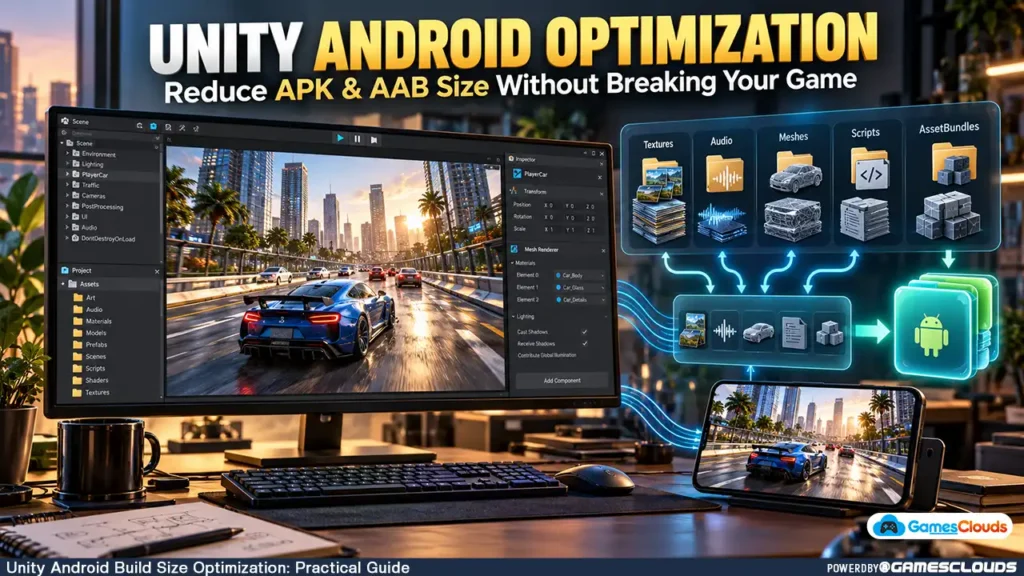
In this guide, we’ll explore practical Unity Android build size optimization techniques, including build analysis, texture compression, audio settings, unused resources, managed code stripping, and Android App Bundle delivery.
The objective is to create a smaller, more efficient game while preserving the experience players expect.
1. Why Does Android Game Size Matter?
Application size influences how easily players can download, install, and maintain a game.
A large download may be inconvenient for players with limited storage, slower internet connections, or restricted mobile data.
However, reducing game size isn’t simply about achieving the smallest possible file.
Understand the Different Types of Size
Developers should distinguish between three measurements.
Unity project size refers to the development files stored on your computer.
Build artifact size refers to the generated APK or Android App Bundle.
Delivered download size refers to the files a player actually receives through a distribution platform.
These measurements aren’t interchangeable.
For example, a Unity project may contain large source textures and generated Library files that aren’t distributed with the game.
Likewise, the size of an uploaded AAB doesn’t necessarily equal the download size delivered to a particular Android device.
Google’s Android App Bundle documentation explains how Google Play generates optimized installation packages for supported device configurations. Android Developers
The Real Optimization Goal
A practical objective is to reduce unnecessary download and storage requirements while maintaining acceptable graphics, loading behavior, compatibility, and gameplay functionality.
2. Start With a Build Report Before Changing Assets
One of the biggest optimization mistakes is reducing asset quality without knowing what contributes most to the build.
Instead, begin with evidence.
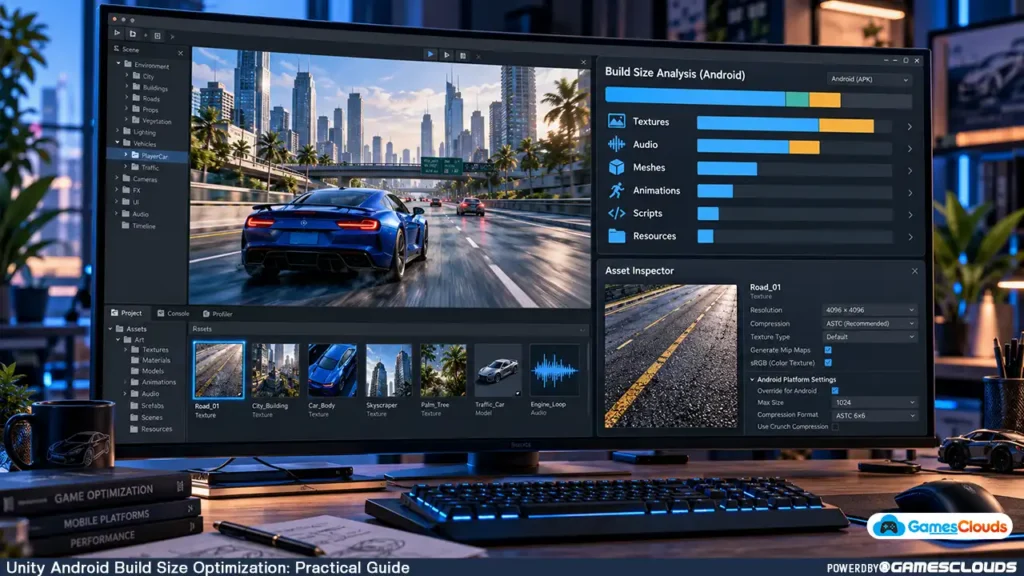
Create a Baseline Build
Open the Unity project using its compatible Editor version.
Switch the target platform to Android.
Create a build using the intended release configuration.
Record the output size and relevant build settings.
This gives you a reference point for later comparisons.
Inspect the Unity Editor Log
After building, open:
Window → General → Console
Open the Console menu and select Open Editor Log.
The log includes information about the assets contributing to the build.
You can inspect categories such as textures, audio, animations, and other resources.
Use Build Report Inspector
Unity also provides a Build Report Inspector package.
It can display information about build steps, output files, and assets included in the application.
Unity’s official build-size reduction guide explains how to inspect build reports and identify large assets. Unity Documentation
Why This Step Matters
Imagine discovering that textures account for a substantial portion of your game’s content.
You now have a specific optimization target.
Without that information, you might spend hours modifying scripts that contribute relatively little to the final package.
3. Optimize Textures Without Destroying Visual Quality
Textures are often among the largest contributors to game content size.
A Unity racing game might contain vehicle textures, roads, buildings, skyboxes, terrain materials, and interface graphics.
Not every texture requires the same resolution.
Review Texture Resolution
Suppose a small roadside object uses a 4096 × 4096 texture.
If players rarely see that object up close, such a large texture may be unnecessary.
A smaller resolution could provide adequate visual quality.
However, reducing texture resolution should depend on how the asset appears during gameplay.
Use Android Platform Overrides
Select a texture in Unity’s Project window.
In the Inspector, review its import settings.
Enable an Android-specific platform override where appropriate.
You can then evaluate settings such as:
- Maximum texture size.
- Compression format.
- Compression quality.
- Mipmap generation.
ASTC vs. ETC2
ASTC and ETC2 are common compressed texture formats used on Android.
ASTC offers flexible compression settings and is supported by many modern Android GPUs.
ETC2 provides broader compatibility with devices supporting OpenGL ES 3.0 or equivalent capabilities.
However, not every device supports every texture format.
Unsupported formats may require fallback behavior that affects memory usage and loading.
Unity’s official Android texture compression guidance explains these compatibility considerations. Unity Documentation
Avoid One Setting for Every Texture
A character’s face may require more detail than a distant building.
A large background image may tolerate different compression settings from a small interface icon.
Optimize assets according to their actual gameplay use.
4. Review UI Graphics and Sprite Assets
Game interfaces can also contribute to application size.
Menus may contain large backgrounds, button graphics, character portraits, icons, and decorative elements.
Check Oversized UI Images
Consider a portrait mobile game using a full-screen background.
A large source image may be appropriate for artwork production, but the imported texture resolution should match the game’s practical display requirements.
Review the imported dimensions rather than assuming the original Photoshop export is ideal.
Use Sprite Atlases Where Appropriate
Sprite Atlases allow developers to organize multiple sprites into shared textures.
They can help with asset organization and rendering efficiency.
However, atlasing isn’t automatically a build-size reduction technique.
Packing unrelated sprites together can create unnecessary texture usage or loading dependencies.
Understand Source Formats
Converting a PSD file into PNG doesn’t automatically reduce the size of the final Unity build.
Unity processes imported assets into platform-specific formats.
The import settings and resulting build content matter more than the original file extension.
This distinction is explained in Unity’s build-size documentation. Unity Documentation
5. Compress Audio Files Properly
Audio can contribute significantly to a game’s size, especially when the project includes long music tracks, dialogue, or numerous sound effects.
Unity provides several audio compression options.
PCM Audio
PCM stores audio without lossy compression.
It can be suitable for short sounds requiring minimal decoding overhead.
However, it generally requires more storage than compressed alternatives.
ADPCM Audio
ADPCM offers compression with relatively low decoding overhead.
It can be useful for certain short, frequently played sound effects.
Vorbis or MP3 Compression
Compressed audio formats can reduce the storage required for longer audio clips.
For example, background music may be a suitable candidate for compressed storage.
However, developers must balance file size, decoding cost, and sound quality.
Choose Appropriate Load Types
Unity also provides different audio loading approaches.
A long music track may benefit from streaming, while a short sound effect may use a different loading configuration.
These settings affect runtime memory and performance as well as storage.
Unity’s audio compression documentation explains the available formats and their trade-offs. Unity Documentation
6. Remove Unnecessary Resources and Dependencies
Purchased Unity templates may contain resources that are no longer relevant after customization.
For example, a developer might replace several vehicles but leave the original vehicle assets inside the project.
However, simply deleting files isn’t always necessary or safe.
Understand Unity’s Build Inclusion Rules
Unity generally excludes assets that aren’t referenced by included content.
Therefore, an unused file sitting in the Project window doesn’t automatically increase the build size.
There are important exceptions.
Review the Resources Folder
Assets placed inside a Resources folder are included in the build even when they aren’t referenced by scenes.
A large Resources folder can therefore increase the application size.
Inspect its contents carefully.
Check Third-Party Packages
Review packages and plugins that are no longer required.
However, don’t remove a package simply because its functionality isn’t immediately visible.
It may support another system through scripts, native libraries, or indirect dependencies.
Remove Content Safely
Create a backup or version-control checkpoint.
Identify the asset’s references.
Remove or reorganize the unnecessary content.
Then rebuild and test the game.
The objective is to remove genuinely unused dependencies without breaking existing systems.
7. Optimize Meshes and Animation Assets
Although textures and audio often receive the most attention, mesh and animation data can also affect build size.
Review Mesh Import Settings
Select a 3D model and inspect its import configuration.
Depending on the asset, mesh compression may help reduce stored geometry data.
However, compression can affect precision.
This matters for assets containing detailed geometry, deformation, or precise alignment requirements.
Remove Unnecessary Animation Data
Imported models sometimes contain animation clips or channels that aren’t used by the game.
Review whether those resources are needed.
Avoid deleting animation data without testing character controllers, transitions, and gameplay behavior.
Be Careful With Runtime Mesh Changes
Some optimization settings remove unused mesh attributes.
If the game modifies materials or shaders dynamically, those attributes may still be required.
Always test affected assets after changing mesh settings.
8. Use Managed Code Stripping Carefully
Unity can remove managed code that appears unnecessary during the build process.
This is known as managed code stripping.
How Does It Work?
Unity analyzes managed assemblies and identifies code that appears unreachable.
Removing unused code can reduce the final application size.
However, static analysis cannot always identify code accessed dynamically.
The Risk of Aggressive Stripping
Some systems use reflection or other runtime mechanisms to access classes and methods.
A stripping configuration may remove code that those systems require.
This can affect serialization, plugins, or dynamically loaded functionality.
Use the Correct Preservation Mechanisms
Unity supports mechanisms such as preservation attributes and link.xml files for retaining required code.
Developers should review the official guidance before increasing stripping levels.
Unity’s managed code stripping documentation explains how the Unity linker works and why runtime code access requires attention. Unity Documentation
Important: Never assume that a successful build means every required script survived stripping. Test gameplay systems in the compiled application.
9. Understand APK vs. Android App Bundle
Android applications can be packaged using different formats.
For developers publishing new applications through Google Play, the Android App Bundle is the standard required publishing format.
What Is an APK?
An APK is an Android application package.
It can be installed on compatible Android devices.
Developers commonly use APK builds during local testing.
What Is an AAB?
An Android App Bundle contains application code and resources used by Google Play to generate optimized installation packages.
Google Play can deliver device-specific resources rather than requiring every player to download the same complete package.
Does AAB Automatically Solve Every Size Problem?
No.
An App Bundle improves distribution efficiency, but it doesn’t eliminate oversized textures, unnecessary resources, or poorly organized content.
Developers should optimize the actual game assets before relying on distribution-level improvements.
For the broader publishing workflow, read our Unity Google Play publishing guide.
10. Use Play Asset Delivery for Larger Games
Some games contain substantial content that doesn’t need to be available immediately.
For example, a driving game might include several optional environments.
Google Play provides Play Asset Delivery for distributing supported game assets through asset packs.
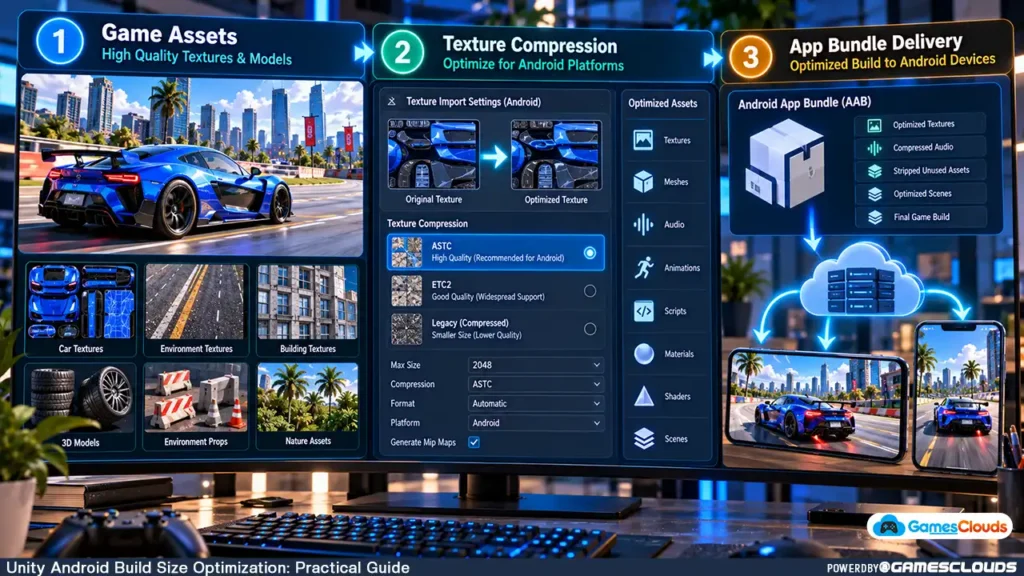
What Is Play Asset Delivery?
Play Asset Delivery allows developers to distribute additional resources alongside an Android App Bundle.
These resources can include textures, audio, meshes, and other non-executable content.
Understanding Delivery Modes
Google documents three primary delivery modes.
Install-time: Assets are delivered as part of the installation process.
Fast-follow: Assets are downloaded automatically after installation.
On-demand: Assets are downloaded when requested by the application.
These approaches provide different trade-offs between initial download size, content availability, and player experience.
Important Considerations
Moving assets into on-demand delivery doesn’t remove their total download cost.
It changes when players receive them.
Developers must handle download failures, unavailable content, and network interruptions.
Unity provides Play Asset Delivery integration for supported Android build configurations.
Review the official Google Play Asset Delivery documentation before planning the system. Android Developers
11. Practical Example: Optimizing a Unity Driving Game Template
Consider a hypothetical driving simulator developed from an editable Unity template.
The project includes multiple vehicles, several environments, music tracks, and interface assets.
The developer wants to reduce the Android download size.
Stage 1: Create a Baseline
Build the original project using a known configuration.
Record the build size and inspect the asset breakdown.
Stage 2: Identify Large Textures
Review vehicle textures, environment materials, and skyboxes.
Apply appropriate Android compression settings to selected assets.
Stage 3: Review Audio
Inspect background music and frequently used sound effects.
Choose compression settings based on the type of audio.
Stage 4: Inspect Resources
Identify unnecessary assets inside Resources folders.
Check whether those assets are required by runtime loading systems.
Stage 5: Review Build Settings
Evaluate managed stripping and other relevant optimization options.
Avoid making several risky configuration changes simultaneously.
Stage 6: Rebuild and Compare
Create another build using the same target configuration.
Compare the output against the baseline.
Stage 7: Test the Complete Game
Verify vehicle selection, gameplay controls, level loading, sound effects, menus, progression, and other important systems.
This is a hypothetical optimization workflow, not a claim about a specific GamesClouds project.
Developers interested in an editable driving project can explore the Mega Car Stunt Unity 3D Source Code available on GamesClouds.
The same optimization principles can be evaluated for racing, simulation, and action game templates.
12. Test Actual Download Size and Gameplay
After optimization, verify the result using more than the generated file size.
Measure Device-Specific Downloads
Google provides tools for examining how Android App Bundles are delivered.
The bundletool utility can generate device-specific APK sets and estimate download sizes.
Google also recommends testing through Play Console for a realistic representation of the distribution experience. Android Developers
Test Different Devices
Install the game on representative Android devices.
Check whether compressed textures display correctly.
Verify that audio plays without unexpected problems.
Confirm that every required scene and gameplay asset loads successfully.
Compare More Than File Size
Review loading times, memory usage, graphics quality, and gameplay stability.
A smaller build isn’t necessarily better if it introduces excessive loading delays or compatibility problems.
13. Common Unity Build Size Optimization Mistakes
A common mistake is reducing every texture to the same low resolution.
Another is deleting assets without checking whether they are loaded dynamically.
Developers may also enable aggressive code stripping without testing reflection-based systems.
Incorrect texture compression settings can create compatibility problems on unsupported devices.
Moving too much essential content into downloadable asset packs can also make the first gameplay session frustrating.
Finally, comparing only the AAB upload size can produce misleading conclusions about what players actually download.
The best optimization process changes one meaningful factor at a time and measures the result.
Conclusion
Reducing a Unity Android game’s size requires more than compressing a few images or deleting unused folders.
Developers should begin by understanding what the build actually contains.
Build reports can identify large assets.
Texture and audio compression can reduce storage requirements when configured appropriately.
Resources folders, mesh data, and unnecessary dependencies deserve careful review.
Managed code stripping can also help, but it must be tested thoroughly.
For larger projects, Android App Bundles and Play Asset Delivery provide additional content-distribution options.
The objective is not to produce the smallest possible application at any cost.
It is to deliver a game that balances download size, visual quality, compatibility, and gameplay performance.
At GamesClouds, developers can explore editable Unity projects across racing, simulation, shooting, and other genres.
Browse our Unity game source-code collection to explore available templates.
If you need assistance optimizing an existing Unity project, customizing game assets, or preparing a game for Android release, explore our game development and customization services.
You can also contact GamesClouds to discuss your project requirements.
Frequently Asked Questions
How can I reduce the size of my Unity Android game?
Start by inspecting the Unity build report. Identify large textures, audio files, and included resources. Then evaluate appropriate compression settings, unused dependencies, mesh optimization, and managed code stripping. Test the resulting application after each meaningful change.
Does converting an APK to AAB reduce game size?
An Android App Bundle allows Google Play to generate device-specific installation packages, which can reduce unnecessary downloads. However, the AAB upload file itself isn’t necessarily smaller than an APK, and it doesn’t automatically optimize oversized game assets.
Which texture compression format is best for Unity Android games?
ASTC is useful for many modern Android devices, while ETC2 offers broader compatibility across devices supporting OpenGL ES 3.0 or equivalent capabilities. The correct choice depends on the target hardware, visual requirements, and distribution strategy.
Can I delete unused assets from a purchased Unity game template?
Yes, but first confirm that the assets aren’t required by scenes, scripts, prefabs, Resources-based loading, or other runtime systems. Create a backup and test the project after removing content. Unity already excludes many unreferenced assets from normal builds.
Does reducing Unity game size improve FPS?
Not necessarily. Download size and runtime performance are different measurements. Some optimizations can improve memory usage or loading behavior, but a smaller application doesn’t automatically render faster. Use profiling tools to evaluate performance separately.