Unity Gamepad Support: Add Controllers to Game Templates
Imagine purchasing a Unity racing game template.

The game already includes vehicles, tracks, menus, a garage system, and working driving mechanics.
You can accelerate using the keyboard, steer with the arrow keys, and navigate the menus using a mouse.
Everything works correctly on your development PC.
Now you want to improve the game for players who prefer using a controller.
You connect an Xbox-style gamepad, launch the game, and discover that the controller does nothing.
The vehicle doesn’t respond to the analog stick. The triggers don’t control acceleration, and the main menu cannot be navigated without a mouse.
The problem isn’t necessarily the gameplay system.
It’s the input architecture.
Adding Unity gamepad support requires developers to connect controller inputs to existing gameplay actions, configure device handling, and ensure that the interface works with a controller.
Fortunately, Unity provides tools that can make this process easier.
This guide explains how to add controller support to an existing Unity game template using the Unity Input System, without unnecessarily rewriting working gameplay code.
1. Why Add Gamepad Support to a Unity Game?
Different players prefer different input devices.
Some enjoy playing racing games using a keyboard.
Others prefer the analog steering and trigger controls available on a gamepad.
For action and adventure games, controllers can provide a comfortable way to manage movement, camera controls, and combat actions.
Gamepad Support Can Improve Input Flexibility
Adding controller support allows developers to offer additional ways to interact with a game.
For example, a driving simulator could support:
- Keyboard controls for steering and acceleration.
- Gamepad analog sticks for steering.
- Controller triggers for acceleration and braking.
- Mouse or gamepad navigation for menus.
The same gameplay systems can potentially respond to different input devices.
Does Every Unity Game Need Controller Support?
No.
A simple mobile puzzle game may work perfectly with touch controls.
However, controller support can be valuable when adapting suitable racing, simulation, platforming, or action games for PC.
The decision should depend on the game’s design and intended audience.
2. Understand the Existing Input System
Before modifying a purchased Unity template, determine how its current controls work.
Unity projects can use different input architectures.
Legacy Input Manager
Older Unity projects may use APIs such as:
Input.GetAxis("Horizontal");
Input.GetKey(KeyCode.Space);
These methods belong to Unity’s legacy Input Manager.
Some projects also use custom scripts that read keyboard input directly.
Unity Input System Package
Unity also provides the newer Input System package.
It supports different input devices through configurable actions and bindings.
Instead of writing separate gameplay logic for every controller button, developers can define actions such as Move, Accelerate, Brake, Jump, or Interact.
Different devices can then trigger those actions.
Unity’s official Input System Quick Start Guide explains the action-based workflow. Unity User Manual
Should You Replace the Existing System?
Not automatically.
If a template already has a working input architecture, evaluate whether it can be extended.
Replacing the complete input system may introduce unnecessary changes.
For projects that rely heavily on hardcoded keyboard controls, introducing an input abstraction layer may be more maintainable.
3. Create a Backup Before Changing Controls
Controller integration can affect several interconnected systems.
A driving game may contain separate scripts for steering, acceleration, braking, camera movement, and menu navigation.
Changing these systems without understanding their relationships can create unexpected behavior.
Preserve the Original Project
Create a complete project backup or use version control.
Record the original Unity Editor version and installed packages.
Generate a working build before making changes.
This provides a reference for comparing the original controls with the modified version.
Identify Input Dependencies
Search the project’s C# scripts for existing input calls.
Look for keyboard controls, mouse input, mobile touch handlers, and custom joystick components.
Document which scripts receive input and which scripts perform gameplay actions.
This makes it easier to change input handling without damaging existing mechanics.
4. Install the Unity Input System Package
If the project doesn’t already use Unity’s Input System package, you can install it through Package Manager.
Step 1: Open Package Manager
In Unity, navigate to:
Window → Package Manager
Select the Unity Registry.
Locate the Input System package.
Install a version compatible with the project’s Unity Editor version.
Step 2: Configure Active Input Handling
Open:
Edit → Project Settings → Player
Find the Active Input Handling setting.
Depending on the project, you may need to select the Input System package or temporarily enable both input systems during migration.
Enabling both systems can be useful for compatibility testing, but it should not be treated as a permanent solution without reviewing the project’s requirements.
Avoid accidentally processing the same player input through two separate systems.
Step 3: Verify the Installation
After Unity completes the package installation and any required Editor restart, confirm that the Input System components and Input Actions tools are available.
The exact interface can vary between Unity versions.
5. Create an Input Actions Asset
An Input Actions Asset stores the actions and device bindings used by the game.
This is one of the central components of Unity’s modern input workflow.
Create the Asset
In the Project window, create an Input Actions Asset using the available Input Actions creation option.
Give it a descriptive name, such as:
GameControls.inputactions
Open the asset in the Input Actions editor.
Define Gameplay Actions
For a hypothetical racing game, you might create the following actions:
| Action | Keyboard Binding | Gamepad Binding |
|---|---|---|
| Steer | A / D or Left / Right | Left Stick X-axis |
| Accelerate | W | Right Trigger |
| Brake | S | Left Trigger |
| Handbrake | Space | South Face Button |
| Change Camera | C | North Face Button |
| Pause | Escape | Start/Menu Button |
These are illustrative bindings.
The final configuration should match the game’s design and controller layout.
Select Appropriate Action Types
Steering can use a one-dimensional Axis value when the vehicle only needs left-right input.
Acceleration and braking can also use Axis values.
A character movement system may instead use a two-dimensional Vector2 value.
For keyboard steering, configure a suitable 1D Axis composite binding.
For analog steering, use the gamepad stick’s horizontal axis.
Correct action types make the input values easier to interpret.
6. Configure Keyboard and Gamepad Control Schemes
Control schemes help organize bindings for different device combinations.
For example, a PC game might define:
Keyboard & Mouse
Gamepad
Each scheme identifies the devices and bindings relevant to that input method.
Why Control Schemes Matter
Imagine a player navigating the game using a keyboard and then picking up a controller.
A suitable input architecture can allow the game to respond to the new device without duplicating gameplay logic.
Control schemes also help developers manage device pairing and input restrictions.
Unity’s Input System supports multiple control schemes within an Input Action Asset. GitHub
Test Device Switching
Do not assume that every project automatically switches correctly between devices.
The behavior depends on the configured control schemes, PlayerInput components, and device assignments.
Test switching between keyboard and gamepad during gameplay and inside menus.
7. Connect Input Actions to Existing Gameplay Scripts
Once the actions are configured, they must communicate with the game’s existing systems.
Unity provides a PlayerInput component that can connect input actions to C# methods or events.

Add the PlayerInput Component
Select the player object or another suitable input-management object.
Add a PlayerInput component.
Assign the Input Actions Asset.
Choose the appropriate default action map.
Then select a notification behavior suitable for your project.
Unity’s official PlayerInput documentation describes how PlayerInput manages actions, devices, and callbacks. Unity User Manual
Example: Reading Steering and Acceleration
A simple input adapter might look like this:
using UnityEngine;
using UnityEngine.InputSystem;

public class VehicleInputBridge : MonoBehaviour
{
    public float Steering { get; private set; }
    public float Throttle { get; private set; }

    public void OnSteer(InputAction.CallbackContext context)
    {
        Steering = context.ReadValue<float>();
    }

    public void OnAccelerate(InputAction.CallbackContext context)
    {
        Throttle = context.ReadValue<float>();
    }
}
This example assumes that the Steer and Accelerate actions are configured as float-valued actions.
Set PlayerInput’s notification behavior to Invoke Unity Events, then connect the corresponding action events to these methods.
The existing vehicle controller can read the stored input values and apply them through its normal movement or physics logic.
This is a simplified input adapter, not a complete vehicle controller.
Why Separate Input From Movement?
The input system should describe what the player wants to do.
The vehicle controller should determine how the vehicle responds.
This separation makes it easier to support keyboard, gamepad, and other devices without duplicating vehicle physics.
For physics-driven vehicles, movement calculations should remain coordinated with the project’s fixed-timestep physics update.
8. Configure Analog Sticks and Trigger Controls
Analog input is one of the main differences between keyboard and gamepad controls.
Keyboard buttons generally provide discrete pressed or released states.
Analog sticks and triggers can provide values across a range.
Steering With an Analog Stick
A gamepad’s horizontal stick axis can provide values between approximately -1 and 1.
Negative values indicate one steering direction, while positive values indicate the other.
A value near zero represents the centered position.
The vehicle controller can use this value to determine steering input.
Acceleration With Triggers
Gamepad triggers commonly provide values between 0 and 1.
This allows acceleration input to vary depending on how far the trigger is pressed.
However, the game’s vehicle controller must support proportional throttle input for this to affect acceleration meaningfully.
Configure Dead Zones
Analog sticks may produce small input values even when they appear centered.
Dead zones help ignore unwanted movement near the neutral position.
Unity’s Input System includes processors for handling input values.
Test the settings using actual controllers rather than choosing arbitrary values.
9. Add Controller Navigation to Unity Menus
Gameplay controls are only part of controller integration.
A game isn’t fully controller-friendly if players must use a mouse to start a race, select a vehicle, or change settings.
Configure UI Input
For Unity UI, the Input System provides the InputSystemUIInputModule component.
It connects input actions to interface navigation and interaction.
Common UI actions include Navigate, Submit, and Cancel.
Unity documents this workflow in its UI Input Support Guide. Unity User Manual
Review Button Navigation
Open the main menu.
Verify that the controller can move between buttons.
Check whether the selected button is visually highlighted.
Ensure that Submit activates the selected button and Cancel returns to the appropriate previous screen.
Avoid Mouse-Only Interactions
Some Unity templates contain buttons or interfaces designed exclusively for pointer input.
For example, a vehicle garage might require players to click directly on a car thumbnail.
To support controllers, developers may need to introduce explicit selection controls or an appropriate navigation system.
Manage UI Focus
When opening a menu, ensure that an appropriate interface element receives selection focus.
Otherwise, pressing the controller’s directional buttons may appear to do nothing.
Also verify that gameplay controls do not accidentally remain active while navigating pause menus.
10. Display Correct Controller Button Prompts
Player instructions should reflect the controls currently being used.
For example, a keyboard interface might display:
Press Space to Handbrake
A controller interface might display:
Press A to Handbrake
However, controller layouts and button labels can differ.
Avoid Hardcoding One Controller Layout
A button labeled A on one controller may have a different symbol or position on another.
For broader compatibility, consider a prompt system that selects the appropriate button icons based on the active controller and binding.
The game should also provide a fallback when the exact controller type cannot be identified.
Keep Prompts Consistent
Use the same visual language across gameplay instructions, menus, tutorials, and settings.
If the player changes their bindings, update the prompts where appropriate.
11. Consider Controller Rebinding
Some players prefer custom controller layouts.
For example, one player might prefer acceleration on the right trigger, while another may want a different arrangement.
Unity’s Input System supports runtime binding overrides.
How Rebinding Works
Developers can create an interface that allows players to select an action and assign another compatible control.
Unity provides interactive rebinding functionality through its Input Action APIs.
The official Input Bindings documentation explains interactive rebinding and binding overrides. Unity User Manual
Save Player Preferences
If custom bindings are supported, preserve them between sessions using an appropriate persistence system.
Also provide a way to restore default controls.
A rebinding interface should prevent or clearly explain conflicting assignments that would make the game difficult to control.
12. Understand Steam Input Compatibility
Developers preparing a PC game for Steam may also encounter Steam Input.
Steam Input is a controller-related system provided through Steamworks.
It can help manage controller configurations and device compatibility.
Is Steam Input Required for Every Unity Game?
No.
A Unity game can implement gamepad support using Unity’s Input System without directly integrating the Steam Input API.
However, developers should evaluate Steam Input when preparing a Steam release, especially when supporting different controller types.
Native Input vs. Steam Input
Unity’s Input System handles input devices and actions inside the game.
Steam Input provides additional functionality related to controller configurations and Steam integration.
The appropriate combination depends on the game’s requirements.
Test the Actual Steam Build
A controller that works when launching the executable directly may behave differently when the game runs through Steam with particular controller configurations.
Test the game in its intended distribution environment.
Valve’s official Steam Input Developer Documentation explains available integration approaches. Steamworks
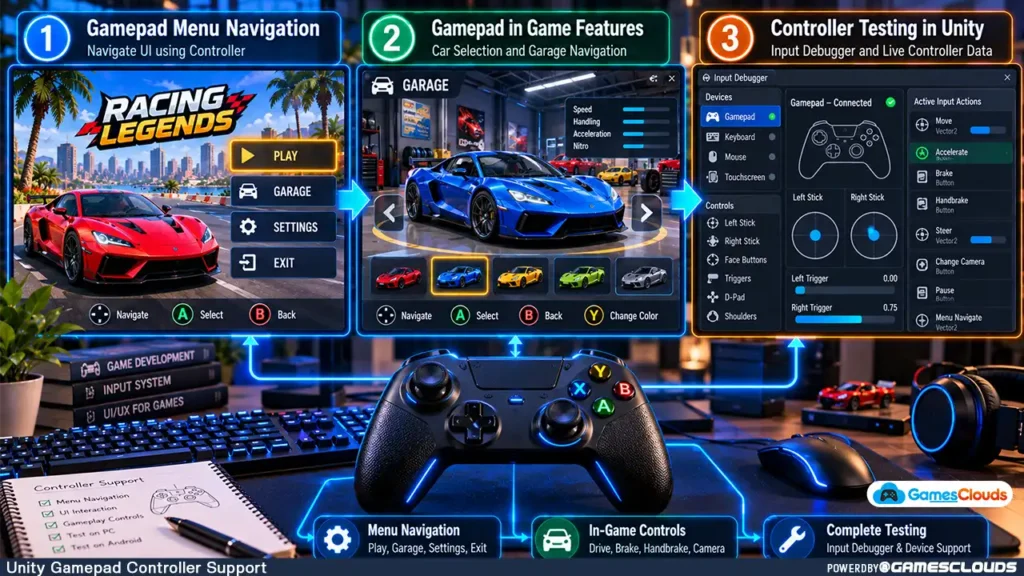
13. Test Controller Support Before Publishing
A successful implementation requires more than confirming that the character moves.
Test Gameplay Controls
Verify steering, acceleration, braking, camera controls, and any context-sensitive actions.
Test both gradual analog input and full button activation.
Test Menus
Confirm that players can navigate the main menu, pause screen, settings, shop, and level-selection interface without using a mouse.
Test Device Changes
Connect and disconnect a controller during gameplay.
Verify that the game handles device loss appropriately.
Unity’s PlayerInput component supports notifications related to lost and regained devices. Unity User Manual
Test Different Controllers
Where possible, test representative Xbox-style and PlayStation-style controllers.
Controller support can vary depending on the operating system, connection method, and software configuration.
Use the Input Debugger
Unity provides an Input Debugger for inspecting detected devices and input activity.
You can access it through:
Window → Analysis → Input Debugger
This can help identify whether a problem originates from device detection, input bindings, or gameplay logic. GitHub
Finally, test the compiled PC build rather than relying exclusively on the Unity Editor.
Practical Example: Adding Controller Support to a Unity Racing Template
Consider a hypothetical Unity racing project that currently supports keyboard controls.
The developer wants to add gamepad support while preserving the existing driving mechanics.
First, they inspect the original vehicle controller and identify where steering, acceleration, and braking inputs are processed.
Next, they create an Input Actions Asset containing the required gameplay actions.
Keyboard and gamepad bindings are assigned to the same actions.
A PlayerInput component connects those actions to an input adapter.
The existing vehicle controller reads the input values and continues handling vehicle movement.
The developer then updates the main menu, garage, pause screen, and level-selection interface to support controller navigation.
Finally, they test the game using different input devices and verify that keyboard controls still work correctly.
For a relevant editable project example, explore the Mega Car Stunt Unity 3D Source Code available on GamesClouds.
Its product listing describes a Unity racing project with vehicle customization, multiple game modes, and Android and PC compatibility. GamesClouds
This is a hypothetical controller-integration scenario. It does not claim that the listed project already includes the exact gamepad architecture described in this guide.
Common Mistakes When Adding Controller Support
One common mistake is replacing working gameplay code before understanding the original input system.
Another is configuring gameplay controls while forgetting menu navigation.
Developers may also overlook analog dead zones, controller disconnection, and device-specific button prompts.
Hardcoding controller inputs directly into gameplay scripts can make future customization more difficult.
Finally, testing with only one controller inside the Unity Editor may leave compatibility issues undiscovered.
A reliable implementation should support the intended devices throughout the complete player experience.
Conclusion
Adding gamepad support to a Unity game template can make an existing project more flexible for PC players.
The process begins with understanding the original input architecture.
Developers can then define gameplay actions, configure controller bindings, connect those actions to existing systems, and update the interface for controller navigation.
Analog input handling, button prompts, rebinding, and device compatibility are also important considerations.
For games intended for Steam, developers should evaluate Steam Input behavior and test the final distribution build.
The objective is not simply to make a controller move a character or vehicle.
It is to create a consistent experience in which players can navigate the entire game using their preferred supported input device.
At GamesClouds, developers can explore editable Unity source-code projects across racing, simulation, action, and other genres.
Browse our Unity game source-code collection to discover available templates.
If you need assistance adding controller support, improving game UI, or preparing an existing Unity project for PC, explore our game development and customization services.
You can also contact GamesClouds to discuss your project requirements.
Frequently Asked Questions
Can I add gamepad support to an existing Unity game?
Yes. Developers can add controller support to existing Unity projects by connecting gamepad inputs to gameplay actions. The amount of work depends on how the original project handles keyboard, mouse, and touch input.
What is the best way to add controller support in Unity?
For many projects, Unity’s Input System provides a flexible approach. It allows developers to create actions and assign multiple device bindings without writing separate gameplay logic for every input device.
Does Unity support Xbox and PlayStation controllers?
Unity’s Input System supports a range of gamepad devices, including commonly used Xbox-style and PlayStation-style controllers. Actual compatibility and available features depend on the controller model, operating system, connection method, and platform.
Can I use the same Unity game for keyboard and controller players?
Yes. A game can support keyboard, mouse, and gamepad inputs through a shared action-based architecture. Developers should test switching between devices and ensure that the interface supports the intended input methods.
Do I need Steam Input to publish a Unity game with controller support?
Not necessarily. Unity can handle controller input independently. Steam Input offers additional controller-related functionality, but developers should evaluate whether direct integration is appropriate for their project.