Unity 16 KB Page Size: 7 Essential Checks for Success
Imagine purchasing a Unity car-parking game template.
You open the project, customize the vehicles, redesign the interface, add new environments, and prepare an Android build.
Everything works correctly inside the Unity Editor.
The game also launches successfully on your development phone.
However, when you upload the Android App Bundle to Google Play Console, you discover a compatibility warning involving 16 KB memory page sizes.
This can be confusing.
The game works, the build completes, and no obvious gameplay problems appear.
So why is Google Play reporting an issue?
The explanation often involves native libraries included in the application.
Modern Android devices can use different memory page sizes, and applications containing native code must be built and packaged appropriately.
For Unity developers, this means that an older engine version, incompatible plugin, or incorrectly aligned native library can create publishing problems.
The good news is that developers can investigate these issues systematically.
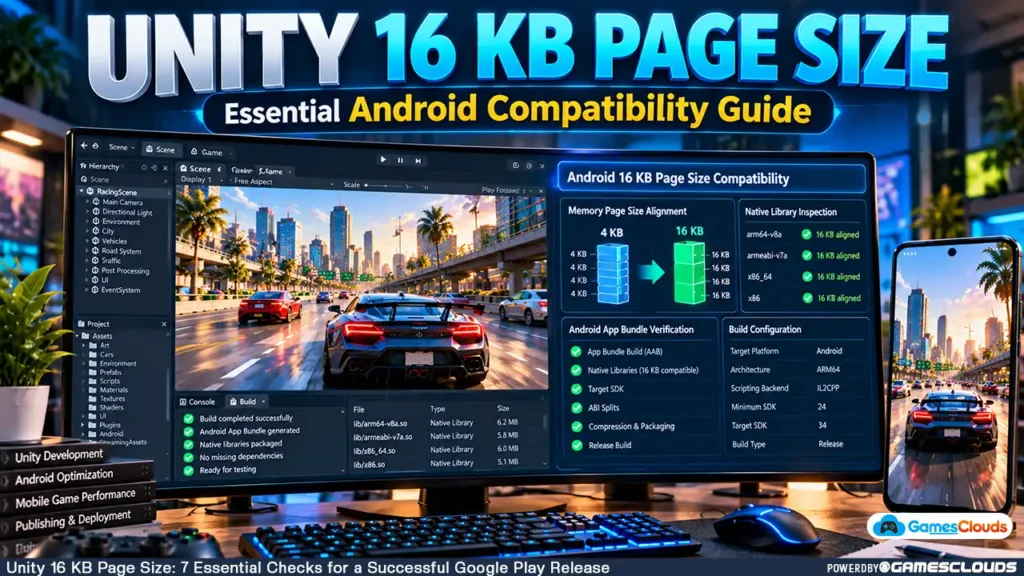
This Unity 16 KB Page Size guide explains seven essential checks for identifying compatibility problems, preparing updated Android builds, and verifying the results before submitting a game to Google Play.
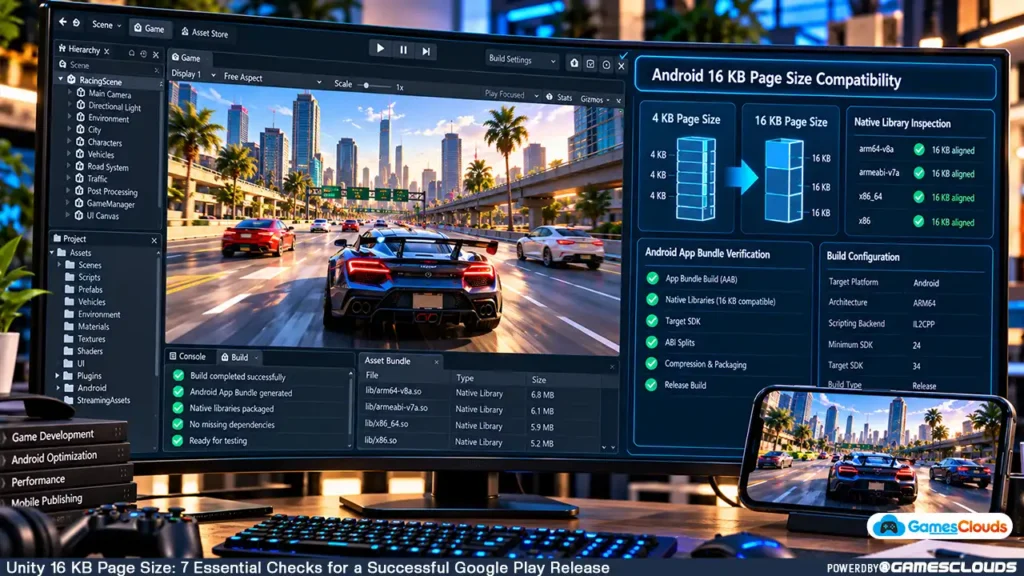
1. Understand the Unity 16 KB Page Size Requirement
Before modifying your project, it’s important to understand what the requirement actually means.
What Is a Memory Page?
Android manages application memory using units called pages.
Historically, many Android devices used memory pages measuring 4 KB.
Beginning with Android 15, the operating system supports devices configured to use 16 KB memory pages.
This change helps Android accommodate newer hardware and different memory-management requirements.
However, native applications must be compatible with the memory configuration used by the device.
Why Does This Affect Unity Games?
Unity games rely on native engine components.
Depending on the project, additional native code may come from advertising SDKs, analytics packages, performance libraries, or third-party plugins.
These components can include compiled shared libraries with the .so extension.
If the libraries aren’t compatible with 16 KB page sizes, the application may fail to install, load, or run correctly on affected devices.
What Does Google Play Require?
Google’s current Android documentation states that applications targeting Android 15, API level 35, or higher must support 16 KB memory pages on applicable 64-bit devices.
The documentation identifies February 1, 2027, as the date after which noncompliant application updates cannot be released.
Developers should verify their own application’s status in Play Console rather than assuming that every application has identical outstanding requirements.
For the latest details, review Android’s official 16 KB compatibility documentation. Android Developers
2. Check Whether Your Unity Version Supports 16 KB Pages
The first technical step is identifying the Unity Editor version used by your project.
Find Your Unity Version
Open the project and check the Editor version.
You can also inspect the ProjectVersion.txt file inside the project’s ProjectSettings folder.
This file records the Unity version associated with the project.
Which Unity Versions Support 16 KB?
Unity’s official Android platform announcement identifies the following versions as introducing support:
| Unity Version | Minimum Supported Release |
|---|---|
| Unity 6.0 | 6000.0.38f1 |
| Unity 6.1 | 6000.1 and later |
| Unity 2022 LTS | 2022.3.56f1 |
| Unity 2021 LTS | 2021.3.48f1, under applicable extended-support arrangements |
These are historical support milestones, not recommendations to install those exact versions today.
For new work, use a currently supported Editor version and an appropriate maintenance release.
Unity also recommends updating native plugins and rebuilding the application after upgrading. Unity Discussions
Should You Immediately Upgrade to Unity 6?
Not necessarily.
If your project uses Unity 2022 LTS, a compatible patch release may be sufficient.
However, you should evaluate your complete publishing requirements, including the Android target API level and supported build tools.
Avoid upgrading the only working copy of your project.
Create a backup first.
For a detailed migration process, read our Unity 6 game template upgrade guide.
3. Audit Native Plugins and Third-Party SDKs
Updating the Unity Editor doesn’t automatically make every dependency compatible.
This is one of the most important considerations when working with purchased source-code projects.
Identify Native Libraries
Unity projects may contain native libraries inside directories such as:
Assets/Plugins/Android/
Some Android plugins are distributed as .aar packages containing additional native libraries.
Others are introduced through package dependencies during the Android build process.
Consequently, checking only the visible Plugins folder may not identify every dependency included in the final application.
Review Common SDK Categories
Pay particular attention to advertising, analytics, authentication, crash reporting, and other third-party SDKs.
A game might compile successfully while including an outdated native dependency.
For example, an older advertising plugin could contain a precompiled library that doesn’t meet current alignment requirements.
Update Dependencies Carefully
Identify the package that supplies the affected library.
Check whether its developer provides a compatible version.
Update the package and rebuild the project.
Avoid deleting unknown native libraries simply to remove a warning.
A deleted library may break essential gameplay, advertising, authentication, or another system.
Check Unity Burst
Projects using Unity Burst should also verify the installed package version.
Unity’s official guidance identifies Burst 1.8.21 or later as addressing a known 16 KB alignment issue involving generated native libraries.
Use a compatible Burst release supported by your Unity Editor.
The official Unity Android compatibility discussion provides additional information. Unity Discussions
4. Rebuild Your Unity Android Application Correctly
After updating the Editor and dependencies, generate a new Android build.
Review Android Build Settings
Open the appropriate Android build configuration.
For Unity 2022, this is generally available through Build Settings.
For Unity 6, use Build Profiles.
Verify the Android platform, target architecture, scripting backend, target API level, and other relevant publishing settings.
Use the Appropriate Scripting Backend
Many Unity Android publishing workflows use IL2CPP with ARM64 support.
However, selecting IL2CPP or ARM64 doesn’t automatically prove that every native library is compatible.
The final build must still be inspected.
Generate an Android App Bundle
For Google Play publishing, enable the Android App Bundle option and generate an .aab file.
Keep a record of the Unity version, SDK versions, and relevant dependencies used to create the build.
Understand Gradle and NDK Compatibility
Google recommends Android Gradle Plugin 8.5.1 or later and Android NDK r28 or later for projects using the corresponding Android build toolchain.
These tools support the required alignment behavior when compatible native dependencies are used.
However, Unity manages specific Android build-tool versions.
Don’t replace Gradle or NDK components independently without confirming compatibility with your selected Unity release.
Google’s Android build compatibility guide explains the underlying requirements. Android Developers Blog
5. Verify Unity 16 KB Page Size Compatibility With Android Studio
A successful Unity build isn’t enough to establish compatibility.
You should inspect the generated Android application.
Open APK Analyzer
Launch Android Studio.
Select:
Build → Analyze APK
Open the APK generated for testing.
Locate the lib directory.
This directory contains native shared libraries included in the application.
Check Library Alignment
Android Studio’s APK Analyzer can display alignment information and identify problematic native libraries.
For example, a warning involving a particular .so file can help you identify which dependency requires attention.
The correct solution is generally to update or rebuild the library using compatible tools.
Understand ELF and ZIP Alignment
Two related checks are important.
ELF alignment concerns how native library segments are organized inside the compiled binary.
ZIP alignment concerns how uncompressed native libraries are positioned inside the APK package.
Passing one check doesn’t automatically establish that the other requirement is satisfied.
Inspect the Android App Bundle
Google also documents using bundletool to inspect App Bundle alignment configuration.
For example, developers can use:
bundletool dump config --bundle=game.aabInspect the output for the bundle’s page-alignment configuration.
A PAGE_ALIGNMENT_16K result indicates that the bundle requests 16 KB ZIP alignment.
However, this doesn’t independently prove that every native library has correct ELF alignment.
Google’s official documentation explains how to verify both conditions. Android Developers
6. Test the Game on a 16 KB Android Environment
After resolving build warnings, test the application in an appropriate environment.
Why Ordinary Device Testing Isn’t Enough
A game that runs correctly on a phone using 4 KB memory pages may still encounter problems on a 16 KB device.
Therefore, successful installation on one development phone isn’t sufficient evidence of compatibility.
Verify the Device’s Page Size
On a properly configured Android device, developers can use Android Debug Bridge.
Run:
adb shell getconf PAGE_SIZEIf the output is:
16384the device is operating with a 16 KB memory page size.
A result of 4096 indicates a 4 KB environment.
Test Real Gameplay
Launch the game and test the systems that matter.
For a racing game, check vehicle movement, scene loading, camera switching, menus, audio, progression, and saving.
If the game includes advertising, verify that the updated SDK initializes correctly and that the relevant ad functionality still works.
What About Android Emulators?
Google provides Android emulator images for testing 16 KB environments.
However, Unity’s Android documentation states that Unity doesn’t support Android emulators as a general testing target.
For Unity games, prioritize compatible physical Android hardware where available.
Emulators may still assist with lower-level Android investigation, but they shouldn’t replace supported-device testing.
Review the Unity Android requirements documentation for current platform limitations. Unity Documentation
7. Confirm Compatibility in Google Play Console
The final check should involve the application package intended for distribution.
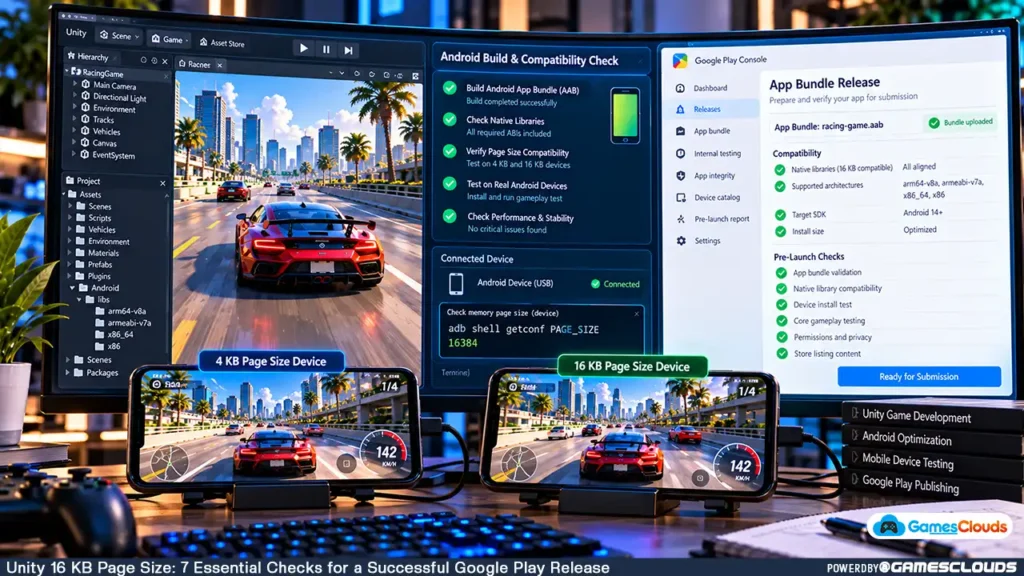
Upload the Updated App Bundle
Open Google Play Console and select your application.
Upload the newly generated Android App Bundle through an appropriate testing or release workflow.
Review App Bundle Explorer
Google Play Console provides compatibility information through App Bundle Explorer.
Review the uploaded build and check whether it reports native library alignment problems.
Resolve Remaining Warnings
If Google Play identifies an incompatible native library, investigate the exact dependency.
Don’t assume the problem has been fixed merely because you updated Unity.
The issue may involve a plugin, an outdated native binary, or package configuration.
Test Before Production Release
Use the available testing tracks to verify that the updated build installs and runs correctly.
For the broader publishing process, read our Unity Google Play publishing guide.
The goal is to confirm both technical compatibility and normal gameplay behavior before submitting the production release.
Common Unity 16 KB Page Size Mistakes to Avoid
One frequent mistake is assuming that every Unity project becomes compatible immediately after upgrading the Editor.
An updated engine cannot automatically repair every outdated third-party native library.
Another mistake is checking only whether the application builds successfully.
Build completion doesn’t prove that the final package meets all compatibility requirements.
Developers may also confuse ELF alignment with APK ZIP alignment.
These checks address different technical requirements.
Removing incompatible plugins without understanding their purpose can create additional problems.
Finally, testing only on a 4 KB device leaves an important compatibility gap.
A reliable approach involves updating the appropriate components, inspecting the actual output, testing the game, and reviewing the results in Play Console.
Practical Example: Updating an Older Unity Racing Template
Consider a hypothetical developer who purchases a Unity racing game template created using an older Unity 2022 release.
The project includes vehicle physics, several environments, a progression system, and an advertising integration.
The developer wants to publish a customized Android version.
Stage 1: Create a Backup
Preserve the original working project.
Stage 2: Update Unity
Select a compatible Unity Editor maintenance release.
Stage 3: Review Plugins
Identify advertising, analytics, and other dependencies that include native libraries.
Update incompatible components.
Stage 4: Generate a New Build
Configure the Android settings and create a fresh release candidate.
Stage 5: Inspect the Package
Use Android Studio and the relevant alignment tools to identify potential problems.
Stage 6: Test Gameplay
Verify that the updated game functions correctly on representative supported devices, including a 16 KB environment where available.
Stage 7: Review Play Console
Upload the build to an appropriate testing track and confirm the compatibility status.
This example illustrates a possible development workflow. It isn’t a report of actual customer results.
Developers looking for editable projects can explore the Real Highway Car Racing Unity Source Code available through GamesClouds.
As with any source-code project, verify the included Unity version, dependencies, and current publishing compatibility before release.
Unity 16 KB Compatibility Checklist
| Development Stage | Verification |
|---|---|
| Project Backup | Preserve the original working version |
| Unity Editor | Use a compatible maintenance release |
| Native Plugins | Identify and update incompatible libraries |
| Build Configuration | Verify Android and scripting settings |
| App Bundle | Generate a fresh release candidate |
| APK Inspection | Review native libraries and alignment |
| Device Testing | Test on a 16 KB environment |
| Google Play Console | Confirm the uploaded build’s compatibility status |
| Final QA | Retest gameplay and integrated SDK functionality |
This checklist can be reused when preparing future Android game updates.
Conclusion
Unity 16 KB Page Size compatibility is an important part of modern Android game publishing.
A project that builds successfully and runs on an older phone may still contain native components that require updating.
Developers should begin by verifying the Unity Editor version.
Next, review native plugins, generate an updated Android build, inspect its libraries, and test the application in an appropriate environment.
Finally, confirm the result through Google Play Console.
For developers using purchased Unity source code, these checks are especially important because older projects may contain dependencies created before current Android compatibility requirements.
At GamesClouds, developers can explore editable Unity source-code projects for Android and PC development.
We also provide game development, project customization, and publishing support.
If you need assistance upgrading an existing project or preparing an Android release, you can contact GamesClouds to discuss your requirements.
Frequently Asked Questions
What is the Unity 16 KB Page Size requirement?
The requirement concerns compatibility with Android devices that use 16 KB memory pages. Unity applications containing native libraries must use compatible binaries and packaging so they can operate correctly on these devices. Google Play also enforces applicable compatibility requirements for Android applications.
Which Unity versions support 16 KB memory pages?
Unity identifies support beginning with Unity 6000.0.38f1, Unity 6000.1, and Unity 2022.3.56f1. Certain Unity 2021 extended-support releases also include compatibility support. Developers should use an appropriate supported maintenance release and verify their plugins.
Can I fix Unity 16 KB compatibility without upgrading to Unity 6?
Potentially, yes. Compatible Unity 2022 LTS releases support 16 KB memory pages. However, the correct solution depends on the project’s Editor version, native dependencies, and other Android publishing requirements.
How do I check whether my Unity Android build supports 16 KB pages?
Inspect the APK using Android Studio’s APK Analyzer, verify native library alignment, review App Bundle packaging, and test the game in a 16 KB environment. Google Play Console can also report compatibility problems for uploaded builds.
Does updating Unity automatically fix the Google Play 16 KB warning?
No. Updating Unity may resolve engine-related compatibility issues, but third-party native libraries can still require updates. Developers should inspect the final Android build and confirm the results before publishing.