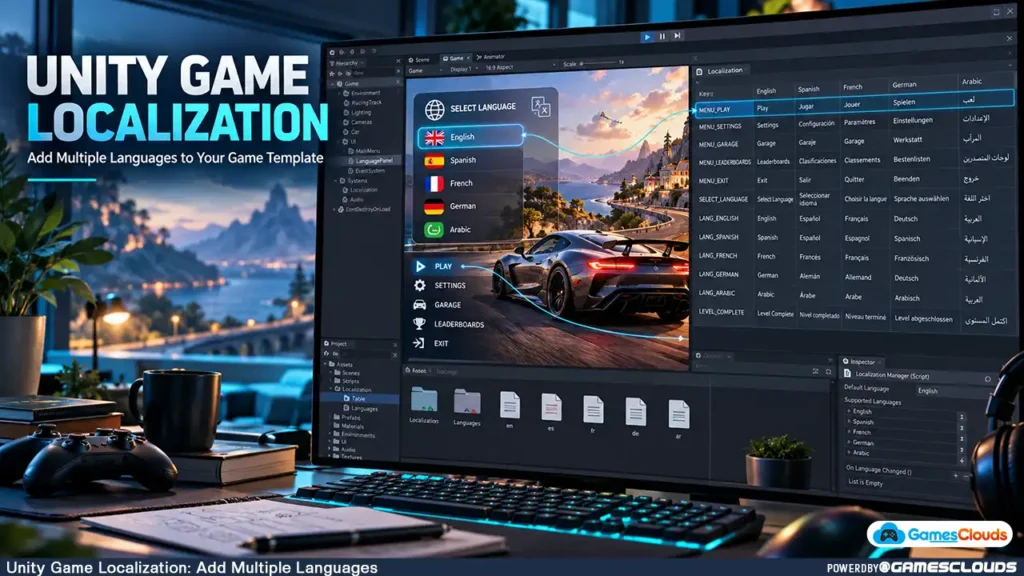
Unity Game Localization: Add Multiple Languages
Imagine purchasing a Unity racing game template.
The gameplay works perfectly. Players can select vehicles, unlock tracks, complete challenges, and earn rewards.
The graphics look polished, and the game is ready for further customization.
But there’s one limitation.
Every menu, instruction, notification, and gameplay message is written in English.
Now you want to release the game for players who prefer Spanish, French, German, or another language.
Should you create a separate Unity project for every language?
Do you need to duplicate all your menus and scenes?
Fortunately, neither approach is normally necessary.
With a structured Unity game localization workflow, developers can support multiple languages within the same game.
Players can select their preferred language while the underlying gameplay systems remain unchanged.
However, localization involves more than replacing English words with translated text.
Developers must also consider interface layouts, font compatibility, dynamic messages, language selection, and testing.
This guide explains how to add multilingual support to an existing Unity game template and prepare it for players in different regions.
1. What Is Unity Game Localization?
Game localization is the process of adapting a game for players who use different languages or regional conventions.
Translation is an important part of localization, but the complete process can involve additional adjustments.
For example, a game may need different fonts, interface layouts, date formats, or language-specific images.
Translation vs. Localization
Translation focuses on converting written or spoken content from one language into another.
Localization considers how that content works within the complete player experience.
Imagine a racing game displaying the message:
“Race Completed!”
A translated version may contain more characters than the original English message.
If the interface uses a fixed-width text box, the translation could overlap nearby buttons or become unreadable.
Localization addresses these presentation problems alongside the translation itself.
Why Localize an Existing Game Template?
A purchased Unity template provides existing gameplay systems that developers can customize.
Adding language support allows the same underlying game to present its interface and instructions in different languages.
This can make the game more accessible to its intended audience.
However, localization alone doesn’t guarantee additional downloads, higher revenue, or better store rankings.
The value depends on translation quality, player demand, and the overall game experience.
2. Review the Existing Game Before Adding Languages
Before installing localization tools, examine how the game currently displays text.
Some Unity templates store interface text directly inside scene objects.
Others generate text dynamically through C# scripts.
Identify Every Source of Player-Facing Text
Review the main menu, settings screen, level selection, shop, tutorials, pause menu, and gameplay interface.
Also inspect achievement messages, notifications, mission descriptions, and error messages.
For example, a racing template might contain:
- Play, Garage, Settings, and Exit buttons.
- Vehicle names and upgrade descriptions.
- Level objectives and completion messages.
- Currency and reward notifications.
- Tutorial instructions and confirmation dialogs.
These elements should be included in the localization plan.
Check for Text Inside Images
Some games use interface graphics containing embedded text.
For example, a button may be a PNG image with the word “PLAY” permanently included.
That text cannot be translated simply by changing a Unity text component.
You may need to replace the image or redesign the interface so that text and graphics are separate.
For developers modifying the visual presentation of purchased source code, our Unity game reskinning guide explains additional customization considerations.
3. Install the Unity Localization Package
Unity provides an official Localization package for managing multiple languages and regional variants.
The package supports translated strings, localized assets, Smart Strings, and testing features.
Unity’s documentation for Unity 6.3 lists Localization package version 1.5.13 as a released version. Compatibility should always be checked against the Editor version used by the project. Unity Docs
Step 1: Open Package Manager
Open your Unity project.
Navigate to:
Window → Package Manager
Locate the Localization package in the Unity Registry.
Select a version compatible with your project and install it.
Step 2: Create Localization Settings
After installation, navigate to:
Edit → Project Settings → Localization
If the project doesn’t already contain a Localization Settings asset, Unity can prompt you to create one.
This asset manages important localization configurations.
Step 3: Configure the Default Language
Select the language that the game should use when a suitable player preference isn’t available.
For an existing English-language template, English may be an appropriate default.
Unity’s Localization Settings documentation explains how supported locales, locale selectors, and fallback behavior are configured. Unity Documentation
4. Create the Languages Your Game Will Support
In Unity’s Localization system, a Locale represents a language or regional variant.
For example:
| Locale | Language |
|---|---|
| en | English |
| es | Spanish |
| fr | French |
| de | German |
| ar | Arabic |
These are illustrative language choices, not a recommendation that every game should support all five.
Add Locales to the Project
Open the Localization Settings.
Use the available locale configuration tools to create and register the languages you want to support.
Start with a small number of languages.
For example, you might initially support English and Spanish.
Once the system works correctly, additional languages can be introduced.
Consider Regional Differences
Some languages have regional variations.
Spanish used in Spain may differ from Spanish used in Latin America.
Similarly, Portuguese can have regional differences in terminology.
Choose regional variants when the game’s audience and content justify them.
Avoid creating unnecessary variants if one carefully reviewed translation adequately serves your intended players.
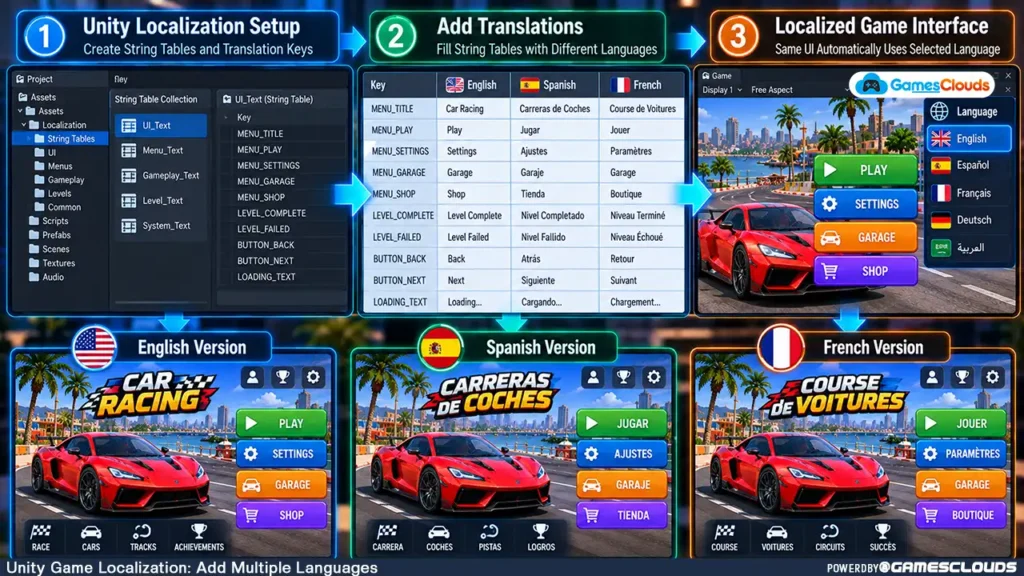
5. Create String Tables for Game Text
String Tables are one of the central features of Unity’s Localization package.
Instead of storing separate translations directly inside every menu object, developers can organize text using reusable keys.
How Do String Tables Work?
Imagine a racing game with a Play button.
You create a localization key named:
MENU_PLAY
That key can contain different values for different languages.
| Localization Key | English | Spanish | French |
|---|---|---|---|
| MENU_PLAY | Play | Jugar | Jouer |
| MENU_SETTINGS | Settings | Ajustes | Paramètres |
| MENU_GARAGE | Garage | Garaje | Garage |
| GAME_PAUSED | Game Paused | Juego en pausa | Jeu en pause |
| LEVEL_COMPLETE | Level Complete | Nivel completado | Niveau terminé |
These translations are illustrative and should be reviewed in the context of the final game.
When the player changes languages, the interface can retrieve the appropriate value from the corresponding table.
Create a String Table Collection
Open:
Window → Asset Management → Localization Tables
Create a new String Table Collection.
Give it a descriptive name, such as:
Game_UI
Select the locales that should be included.
Then create entries for the interface elements.
Unity’s official String Tables documentation explains how table collections share keys across different locales. Unity Documentation
Use Consistent Key Names
Avoid generic names such as Text1 or Button3.
Descriptive keys are easier to maintain.
For example, SHOP_BUY_BUTTON clearly identifies the purpose of a string.
This becomes increasingly important as the project grows.
6. Connect Localized Strings to Unity UI Elements
Creating translations isn’t enough.
The interface must use the localization system instead of displaying fixed text.
Localize Existing UI Text
Select an interface text object.
Depending on the UI component and package version, Unity provides localization components or a contextual Localize option.
Configure the component to reference the appropriate String Table Collection and key.
For example, the Play button should reference MENU_PLAY.
When the selected locale changes, the displayed text can update automatically.
Unity’s official Localization Quick Start Guide demonstrates how to create tables and connect localized values to UI components. Unity Documentation
What About TextMeshPro?
Many Unity game templates use TextMeshPro for interface text.
The localization approach remains similar, but the exact component setup depends on the UI system and installed package version.
Verify that the localized value is correctly assigned to the intended TextMeshPro component.
Avoid maintaining separate hardcoded translations inside individual scripts unless there is a specific technical reason.
7. Add a Language Selection Menu
Players should have a clear way to choose their preferred language.
A language selector is commonly placed inside the Settings menu.
Example Language Selection
A racing game might display:
Language: English
Selecting the option opens a list of supported languages.
The player chooses Spanish.
The game then updates localized text using the selected locale.
Preserve the Player’s Choice
A well-designed localization system should remember the player’s language preference when appropriate.
Unity’s Localization package includes locale-selection mechanisms that can work with saved preferences.
However, developers should verify the behavior rather than assuming every configuration automatically preserves the selection.
Avoid Restarting the Game Unnecessarily
For text-only changes, it is often possible to update the interface without restarting the entire game.
Some localized assets or custom systems may require additional loading or refresh logic.
Test language changes while different menus are open.
8. Handle Dynamic Gameplay Messages Correctly
Not every game message is static.
Consider a racing game that displays:
“You earned 500 coins!”
The number changes depending on the player’s reward.
Creating a separate translation for every possible number would be impractical.
Use Dynamic Localized Strings
Unity supports Smart Strings, which allow developers to include variables and formatting logic inside localized messages.
This is useful for currency rewards, player names, item counts, and other dynamic information.
Consider Grammar Differences
Different languages don’t always follow the same grammatical structure.
For example, the position of a number or noun may vary.
Plural forms can also differ.
A properly configured localization system should allow each language to format messages appropriately.
Avoid building sentences by joining individually translated words in a fixed English order.
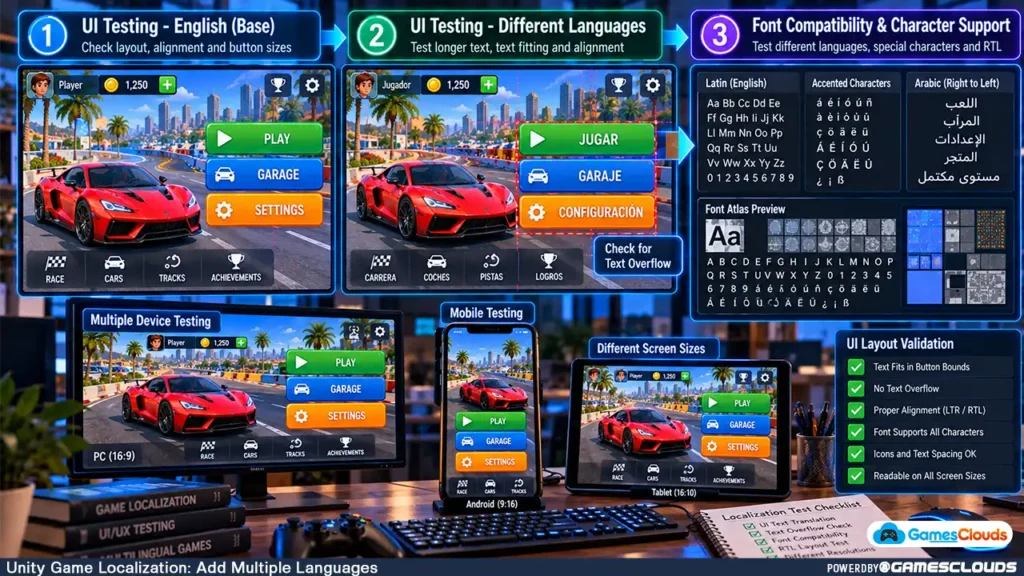
9. Check Fonts and Special Characters
Font compatibility is one of the most important parts of multilingual game development.
A font that displays English correctly may not contain the characters required for another language.
Common Font Problems
After adding translations, developers may encounter missing characters, empty boxes, incorrect symbols, or inconsistent text rendering.
These issues often indicate that the selected font asset doesn’t contain the required glyphs.
Configure Suitable Font Assets
For TextMeshPro interfaces, create or select font assets that support the intended languages.
Where appropriate, configure fallback font assets.
Unity’s String Tables documentation also describes exporting character sets that can help prepare TextMeshPro font atlases. Unity Documentation
What About Arabic and Other Right-to-Left Languages?
Right-to-left languages can require additional work.
Developers must consider text shaping, reading direction, alignment, and interface layout.
A font containing Arabic characters doesn’t automatically guarantee correct Arabic rendering.
The selected text-rendering solution must support the language’s shaping and bidirectional text requirements.
Test these languages separately rather than assuming the same layout will work everywhere.
10. Localize Images, Audio, and Other Assets
Some games contain language-specific graphics or voice recordings.
For example, a tutorial image may include written instructions.
A mission introduction may use recorded dialogue.
Use Asset Tables When Appropriate
Unity’s Localization package supports Asset Tables that associate different assets with different locales.
Depending on the project, these assets may include textures, audio clips, or other supported resources.
For example, an English tutorial image could be replaced with a Spanish version when the player changes languages.
Avoid Duplicating Unnecessary Assets
Not every image requires localization.
A vehicle texture, environmental object, or decorative icon may work across all languages.
Only create language-specific variations when the content actually needs them.
This helps keep the project organized and avoids unnecessary duplication.
11. Test Interface Layouts in Every Language
A translated interface may behave differently from its English version.
Some translations require more horizontal space.
Others contain characters with different visual proportions.
Review Buttons and Menus
Check whether translated text fits inside buttons, panels, and dialog boxes.
For example, a short English label may become noticeably longer in another language.
Avoid relying entirely on fixed-width interface elements.
Use Flexible Layouts
Where suitable, Unity’s layout components can help interfaces adapt to changing content sizes.
However, automatic layouts still require testing.
A responsive interface doesn’t guarantee that every translation will fit correctly.
Use Pseudo-Localization
Unity’s Localization package includes pseudo-localization features.
These can help developers test how interfaces respond to modified or expanded text before final translations are available. Unity Documentation
This is useful for identifying clipping, overlapping elements, and assumptions about text length early in development.
12. Test Localization in an Actual Game Build
Localization should be tested in the Unity Editor and in compiled applications.
A project may appear correct during development but encounter missing resources or font problems in the final build.
Verify Addressables Configuration
Unity’s Localization package uses Addressables for managing localized resources.
The package’s Quick Start Guide explains how to prepare Addressables content for player builds. Unity Documentation
Review the configuration used by your installed package version and build pipeline.
Test Language Switching
Launch the game using its default language.
Change to another language.
Navigate through menus, start gameplay, complete a level, and return to the main menu.
Confirm that the correct translations remain visible.
Test Saved Preferences
Close and reopen the game.
Check whether the intended language-selection behavior is preserved.
Test Missing Translations
Temporarily remove a translation in a development build.
Verify how the application handles missing content.
A suitable fallback strategy can prevent players from encountering empty interface elements.
Test on Target Devices
For mobile games, test on representative Android devices with different screen sizes.
For PC games, verify different supported resolutions and display configurations.
Don’t assume that successful Editor testing guarantees a correct final build.
Practical Example: Localizing a Unity Car Racing Template
Consider a hypothetical racing game template containing a main menu, vehicle garage, level selection, and reward system.
The developer wants to introduce English and Spanish language support.
First, they inspect the existing scenes and identify all player-facing text.
Next, they install the Localization package and configure the two locales.
They create a String Table Collection containing menu labels, gameplay messages, and vehicle-upgrade descriptions.
Existing UI text components are connected to the appropriate localization keys.
A language selector is added to the Settings menu.
The developer then checks whether the selected fonts support Spanish characters and whether translated labels fit inside existing buttons.
Finally, they test both languages in an actual game build.
The underlying vehicle controller, racing physics, and level progression systems can remain unchanged unless the localization work reveals a specific dependency.
For a relevant source-code example, explore the Mega Car Stunt Unity 3D Source Code available on GamesClouds.
The product listing describes an editable Unity racing project for Android and PC, with multiple game modes and vehicle customization. GamesClouds
This is an illustrative localization scenario. It does not claim that the listed project already includes the localization system described above.
Common Unity Game Localization Mistakes
One common mistake is translating only the main menu while leaving gameplay messages unchanged.
Another is embedding translated text directly into scripts instead of using a maintainable localization structure.
Developers may also overlook missing font glyphs, long translations, and language-specific formatting requirements.
Using automatic translations without appropriate review can introduce confusing terminology.
Finally, testing only in the Unity Editor may leave problems undiscovered in the final Android or PC build.
A successful localization workflow should preserve gameplay functionality while making the interface understandable and usable in each supported language.
Conclusion
Adding multiple languages to a Unity game template doesn’t necessarily require rebuilding the entire project.
With a structured localization workflow, developers can manage translations, language preferences, interface text, and localized assets within the existing game.
The process begins by identifying player-facing content.
From there, developers can configure locales, create String Tables, connect UI components, and implement language selection.
Font compatibility, layout flexibility, and testing are essential parts of the process.
Whether you’re customizing a racing game, shooting game, or simulation template, localization can help make your project more accessible to players who use different languages.
At GamesClouds, developers can explore editable game projects suitable for further customization.
Browse our Unity game source code projects to discover available templates.
For additional game customization, interface redesign, or development assistance, explore our game development and customization services.
You can also contact GamesClouds to discuss your project requirements.
Frequently Asked Questions
1. Can I add multiple languages to an existing Unity game?
Yes. Developers can add multilingual support to existing Unity projects by configuring localization resources, connecting interface text to translation tables, and implementing language selection. The amount of work depends on the original project’s structure.
2. Does Unity have a built-in localization system?
Unity provides an official Localization package through Package Manager. It supports string localization, localized assets, Smart Strings, locale selection, and related testing features.
3. Do I need to create separate scenes for every language?
Usually not. The same scenes can display different translated strings and localized assets based on the selected locale. Separate scenes are only necessary when the project has specific design requirements that justify them.
4. Why are some translated characters missing in Unity?
Missing characters commonly occur when a font asset doesn’t contain the required glyphs. Check the font’s character coverage, TextMeshPro configuration, and fallback fonts. Some languages also require specialized text shaping.
5. Can I localize a Unity game template for Android and PC?
Yes. Unity localization can be used in projects targeting Android and PC. Developers should verify package compatibility, localized resources, font rendering, interface layouts, and final-build behavior on each supported platform.