

How to Add Levels to Unity Game Template
You’ve purchased a Unity game template, opened the project, and successfully tested the gameplay.
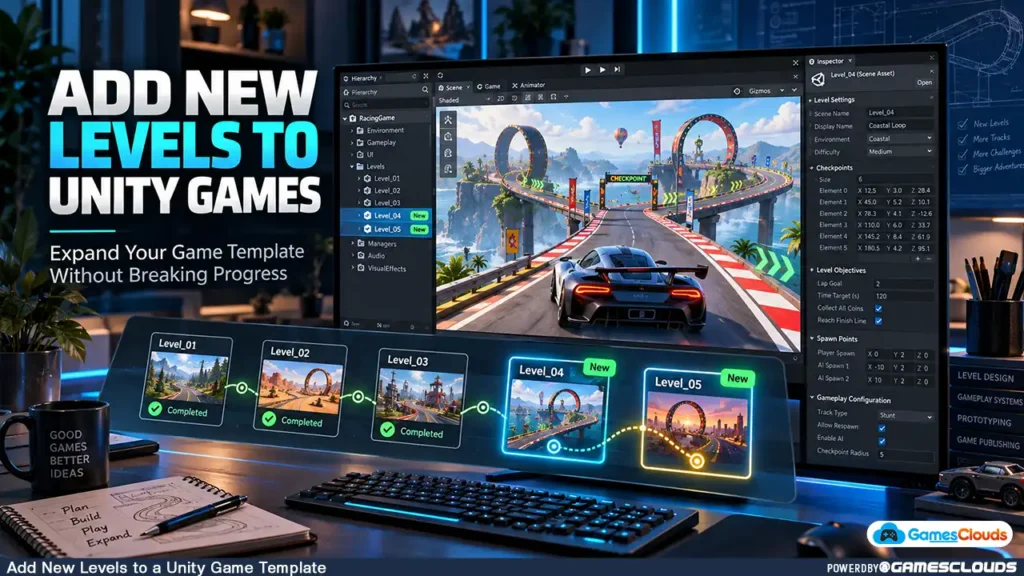
The game includes several playable levels, a functional main menu, a progression system, and perhaps a selection of vehicles or characters.
Everything works.
Now you want to expand the game.
Maybe your racing template contains ten tracks, but you want to create twenty. Perhaps your parking simulator needs additional challenges, or your shooting game requires new missions and environments.
Your first instinct might be to duplicate an existing scene, change the environment, and save it as another level.
That can be a useful starting point.
However, adding a new level to an existing Unity game involves more than creating another scene.
The new level must work with the game’s loading system, progression logic, menus, save data, and gameplay managers.
If these systems aren’t updated correctly, players may encounter locked levels, missing objectives, broken transitions, or lost progress.
This guide explains how to add new levels to a Unity game template while keeping the original gameplay systems functional.
Whether you’re customizing a purchased source-code project or expanding your own game, the same development principles apply.
1. Understand How the Existing Game Handles Levels
Before creating anything new, examine how the original game organizes its content.
Not every Unity project uses the same level-management architecture.
One Scene Per Level
Some games store each level in a separate Unity scene.
For example:
Level_01.unityLevel_02.unityLevel_03.unity
Each scene may contain its own environment, obstacles, objectives, and gameplay objects.
In this architecture, adding another level often involves creating a new scene and registering it with the existing loading system.
Multiple Levels Inside One Scene
Other games use a single gameplay scene and load different level configurations.
For example, a puzzle game might reuse the same scene while changing object positions, targets, and difficulty settings.
A driving simulator could reuse the same environment but change checkpoints and mission objectives.
Why the Difference Matters
Duplicating scenes is useful for scene-based projects.
However, if the game uses a data-driven level system, creating additional scenes may introduce unnecessary complexity.
Practical advice: Identify the existing architecture before deciding how to add content.
2. Create a Backup Before Modifying the Template
Never begin major customization on the only working copy of a Unity project.
A purchased template may contain interconnected systems that aren’t immediately obvious.
Changing one script or prefab can affect multiple levels.
Preserve the Original Project
Create a complete backup or use version control before modifying the source code.
Record the Unity Editor version and important package dependencies.
You should also generate a working build of the original game.
This provides a baseline for comparison if something stops functioning later.
Avoid Unnecessary Unity Upgrades
If the existing project works correctly, don’t upgrade the Editor simply because a newer version is available.
An upgrade can introduce additional changes involving rendering, packages, and scripts.
If migration is necessary, follow our Unity game template upgrade guide before modifying the project further.
3. Identify the Existing Level Manager
Most level-based games contain some form of progression or scene-management logic.
The system might be called LevelManager, GameManager, StageManager, or something else.
These are common naming examples, not mandatory Unity components.
What Does a Level Manager Do?
Depending on the project, it may handle level selection, scene loading, unlocking, completion rewards, and progression.
For example, a game containing ten levels might use an array containing ten scene references.
If you create Level 11 without updating that array, the new level may never appear in the selection menu.
Check for Hardcoded Level Counts
Look for scripts that assume the game contains a fixed number of levels.
Examples include:
- Arrays with a fixed number of entries.
- Level-selection buttons created manually.
- Progression checks that stop at the original final level.
- Scene loading based on hardcoded numerical indices.
- Save systems that store only the original level range.
Identifying these limitations early can prevent unnecessary debugging.
4. Duplicate an Existing Level Scene Correctly
If the project uses separate scenes, duplicating a working level can be an efficient starting point.
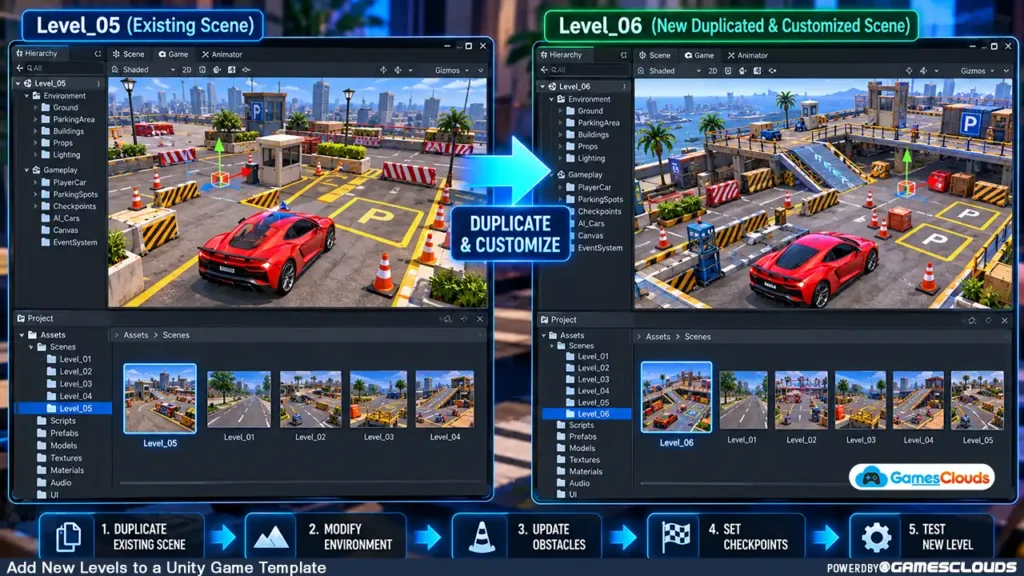
Step 1: Select a Suitable Reference Level
Choose a scene that already contains the gameplay systems you need.
For a car-parking simulator, select a level containing the correct vehicle controller, camera, parking triggers, and completion logic.
Step 2: Duplicate the Scene
In Unity’s Project window, locate the original scene asset.
Duplicate it and assign a clear new name.
For example:
Level_05.unity → Level_06.unity
Keep the original scene unchanged.
Step 3: Modify the Environment
Open the duplicated scene and begin changing its gameplay content.
You might reposition obstacles, replace environmental props, modify checkpoints, or create a new parking layout.
Step 4: Review Scene-Specific References
Duplicating a scene also duplicates its serialized references and scene objects.
Check whether the new level still points to old objective data, spawn locations, or progression settings.
A duplicated scene can appear visually correct while still behaving like the original level.
5. Reuse Prefabs Instead of Rebuilding Gameplay Objects
Prefabs are particularly useful when expanding existing Unity games.
A prefab stores a reusable GameObject configuration that can be placed in multiple scenes.
Example: Racing Game Checkpoints
Imagine a racing template containing checkpoint objects.
Each checkpoint has a trigger collider and a script that detects when the player passes through it.
Instead of recreating the checkpoint system for every new track, reuse the existing prefab.
This helps maintain consistent behavior across levels.
Use Prefab Variants When Appropriate
Prefab Variants allow developers to create variations of an existing prefab while inheriting properties from the original.
For example, you could create different obstacle variants with adjusted movement speeds or visual effects.
Unity’s official Prefab Variants documentation explains how inherited properties and overrides work. Unity Documentation
Avoid Accidentally Modifying Shared Assets
Changes applied to a shared base prefab can affect other levels using that prefab.
When creating a level-specific variation, use instance overrides or a suitable Prefab Variant rather than changing the shared asset unintentionally.
6. Add the New Scene to Unity’s Build Configuration
Creating a scene doesn’t automatically guarantee that it will be included in the final game build.
Unity needs to know which scenes belong to the application.
Unity 2022.3
Open:
File → Build Settings
Locate Scenes In Build.
Add the new scene using Add Open Scenes or by dragging the scene asset into the list.
Confirm that the scene is enabled.
Unity 6
Open:
File → Build Profiles
Select the relevant platform and review its Scene List.
Depending on the Build Profile configuration, the project may use a global scene list or a profile-specific override.
Unity’s official scene management documentation explains how to add, exclude, and reorder scenes. Unity Documentation
Why This Step Matters
A scene may work correctly when opened directly inside the Editor but fail to load in the compiled application if it isn’t included in the appropriate build configuration.
Always verify the actual build.
7. Update the Scene Loading System
Once the new scene is included, the game needs a way to open it.
Some templates load scenes by numerical build index.
Others use scene names or references stored in configuration data.
Avoid Unnecessary Dependence on Scene Indices
Scene indices can change when scenes are reordered.
If a project depends heavily on numerical indices, inserting new scenes may affect existing transitions.
Where appropriate, consider using stable scene references or scene names.
For example, a scene-based project might load a new level using:
using UnityEngine;
using UnityEngine.SceneManagement;

public class LevelLoader : MonoBehaviour
{
    public void LoadLevel(string sceneName)
    {
        SceneManager.LoadSceneAsync(sceneName);
    }
}
This is a simplified example. Production code should validate scene references and handle loading failures appropriately.
The scene must also be available through the project’s supported scene-loading configuration.
Unity documents SceneManager.LoadSceneAsync as a method for loading scenes asynchronously. Unity Documentation
Test Every Transition
Verify that players can enter the new level, restart it, complete it, and return to the appropriate menu.
Also check whether the next-level button loads the intended scene.
8. Update Level Selection and Unlock Conditions
Adding a new gameplay scene doesn’t automatically make it available to players.
Many game templates contain level-selection menus with locked and unlocked states.
Review the Existing Selection System
Suppose your game contains ten levels.
The first level is available immediately, while subsequent levels unlock after completing the previous challenge.
When adding Level 11, the game must recognize that completing Level 10 unlocks the new content.
Use Stable Level Identifiers
Where possible, give each level a consistent identifier.
For example:
| Level ID | Scene | Unlock Requirement |
|---|---|---|
| 1 | Level_01 | Available initially |
| 2 | Level_02 | Complete Level 1 |
| 3 | Level_03 | Complete Level 2 |
| 11 | Level_11 | Complete Level 10 |
This is an illustrative progression model.
The actual system may use stars, currency, achievements, or other requirements.
Update the UI
If the game uses manually created level buttons, add the new entries and connect them to the correct data.
If buttons are generated dynamically, update the underlying level collection.
Don’t forget to check locked-state visuals, preview images, and level numbering.
9. Preserve Existing Player Progress
Save-system compatibility is one of the most important considerations when expanding a game.
Imagine a player who has already completed all ten original levels.
After an update adds five more levels, that player’s previous progress should remain intact.

Avoid Resetting Existing Save Data
Don’t automatically clear saved progression simply because the number of levels has changed.
Review how the project stores completed levels, unlocked content, and current progression.
Consider Data Migration
If the original save system stores a fixed-length array, adding more levels may require a migration strategy.
A safer approach is to preserve existing entries and initialize the new levels with appropriate default values.
For example, the game might retain completed levels 1–10 while introducing levels 11–15 as locked.
Understand PlayerPrefs Limitations
Some smaller Unity games use PlayerPrefs for basic progression data.
Unity states that PlayerPrefs stores data without encryption, so it shouldn’t be used for sensitive information. Unity Documentation
For more complex games, a structured save system may be more suitable.
Important: Always test the updated game using both a fresh installation and existing saved progress.
10. Configure New Level Objectives and Rewards
A new level needs appropriate gameplay objectives.
Simply duplicating the previous level’s completion triggers may produce incorrect results.
Review Objective Configuration
For a parking game, check the required parking position, timer, collision limits, and completion conditions.
For a shooting game, review enemy counts, mission objectives, checkpoints, and victory conditions.
Check Rewards and Difficulty
If the game awards currency or stars after completion, confirm that the new level uses appropriate reward values.
Avoid unintentionally granting the previous level’s reward multiple times.
Consider Data-Driven Level Configuration
Projects with many levels may benefit from separating level settings from gameplay scripts.
For example, a ScriptableObject can store configuration data such as level identifiers, difficulty values, or objective parameters.
Unity describes ScriptableObjects as reusable data containers that can be referenced by different objects. Unity Documentation
However, don’t replace a functioning system with a more complicated architecture unless the project requires it.
11. Optimize the New Level for Its Target Platform
Adding more levels doesn’t necessarily make a game slower during every gameplay session.
However, new environments and assets can introduce performance problems.
Review Environmental Complexity
For mobile games, pay attention to texture sizes, lighting, particle effects, object counts, and rendering costs.
A newly created racing track containing excessive environmental detail may perform differently from the original levels.
Reuse Assets Where Practical
Shared materials, prefabs, and reusable environmental objects can help maintain a manageable project.
However, asset reuse alone doesn’t guarantee good performance.
Test on Real Hardware
Use the Unity Profiler to investigate performance on the intended target devices.
Unity’s official profiling documentation explains how to collect performance data from a running application.
Test the most demanding parts of the new level rather than relying only on Editor performance.
12. Test the Complete Level Progression Before Release
After adding the new content, test the entire progression flow.
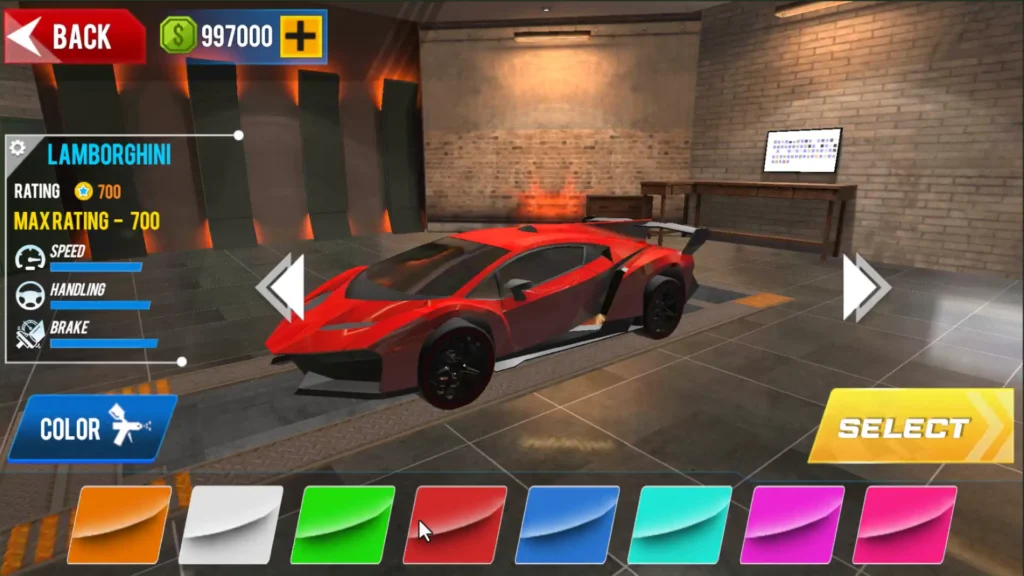
Don’t test only the newly created level.
Test Existing Levels
Verify that the original levels still load, complete, restart, and unlock correctly.
Test New Levels
Confirm that every new level has functional objectives, correct scene references, appropriate rewards, and working menu navigation.
Test Save Compatibility
Use an existing save file to verify that players retain their previous progress.
Then test a fresh installation to confirm that the new progression system starts correctly.
Test the Final Build
Generate an actual Android or PC build and test it outside the Unity Editor.
For developers planning a mobile release, our Unity Google Play publishing guide covers additional release preparation requirements.
Practical Example: Expanding a Unity Car Stunt Game
Consider a hypothetical Unity car stunt game containing ten tracks.
The developer wants to add five new tracks without rebuilding the driving system.
A practical approach would be to preserve the original project, inspect its level-management architecture, and identify reusable vehicle and gameplay prefabs.
Next, the developer could create additional tracks using the existing environment and checkpoint systems.
Each new track would receive a unique level identifier and appropriate objectives.
The developer would then update the scene-loading configuration, level-selection menu, and progression system.
Finally, they would verify that existing players retain their progress and that the new tracks perform correctly on supported devices.
For a relevant source-code example, explore the Mega Car Stunt Unity 3D Source Code available on GamesClouds.
Its product listing describes driving mechanics, multiple game modes, and track customization possibilities.
This example illustrates a general development workflow. It does not claim that the listed project uses the exact architecture described above.
Common Mistakes When Adding New Levels to Unity Games
One common mistake is duplicating a scene without updating its gameplay references.
Another is forgetting to include the new scene in the build configuration.
Developers may also overlook hardcoded level counts, incorrect unlock conditions, and save-data compatibility.
Modifying shared prefabs without understanding their dependencies can unintentionally affect existing levels.
Finally, testing only inside the Unity Editor can leave build-specific problems undiscovered.
The objective is not simply to create more scenes. It is to expand the game while preserving the systems that already work.
Conclusion
Adding new levels to a Unity game template can be a practical way to expand an existing project.
However, successful level expansion requires more than duplicating environments and changing obstacles.
Developers must understand the original project architecture, reuse gameplay systems carefully, update scene references, maintain progression logic, and protect existing save data.
Performance and final-build testing are equally important.
By following a structured workflow, developers can introduce additional gameplay content without unnecessarily rebuilding the entire project.
At GamesClouds, developers can explore editable Unity projects across racing, shooting, simulation, and other game categories.
Browse our Unity game source-code projects to explore available templates.
If you need assistance adding new levels, creating environments, or modifying an existing game, explore our game development and customization services.
You can also contact GamesClouds to discuss your project requirements.
Frequently Asked Questions
1. Can I add new levels to a purchased Unity game template?
Yes, provided the source code is editable and the applicable license permits modification. The amount of work depends on how the original project handles scenes, progression, and gameplay configuration.
2. How do I duplicate a level in Unity?
Locate the existing scene in the Project window, duplicate it, rename the new scene, and modify its content. Then review gameplay references, add it to the build configuration, and connect it to the level-management system.
3. Why doesn’t my new Unity level load in the final game?
Possible causes include a missing scene in the build configuration, an incorrect scene name, an invalid scene index, or a problem in the level-loading script. Check the build configuration and relevant runtime logs.
4. Will adding new levels reset existing player progress?
Not necessarily. Existing progress can be preserved if the save system supports the expanded level structure. However, changing level identifiers or save-data formats without migration can cause problems.
5. Should every Unity game level use a separate scene?
No. Some games use separate scenes, while others reuse one gameplay scene with different level data. The appropriate approach depends on the project’s architecture, content requirements, and development goals.


[…] guidance on modifying existing level structures, read our How to Add Levels to a Unity Game Template […]